Resource planning for your CSC Project
On this page:
- 1. What are Billing Units
- 2. What is Storage Quota
- 3. Plan and apply for your CSC project resource usage
-
When your project runs out of Billing Units
When an academic CSC project runs out of Billing Units, project members have 60 days to apply for more. If Billing Units balance remain negative after those 60 days, the project will be closed and all data is deleted.
Introduction:
Every active CSC project consumes both Billing Units (BUs) and storage quota. When you create a project, CSC grants a default amount of Billing Units (BUs) and storage quota immediately.
Both the CSC project manager and all project members share responsibility for:
- Monitoring how many Billing Units the project has left.
- Monitoring how much of the storage quota is being used.
- Planning 6 months ahead project's resource usage.
- Applying for more Billing Units around 2-4 times a year.
1. What are Billing Units
Billing Units (BUs) are used to track how much computing power and processing time your CSC project consumes. CSC uses different types of Billing Units to measure resource usage based on the service:
-
SD Desktop consumes Cloud Billing Units type, which reflect the type and number of virtual desktops running and the number of external volumes you've created. Each virtual desktop in SD Desktop can have a external volume, where files can be imported from SD Connect/SD Apply for analysis. The volume appears inside the virtual desktop similarly to how a USB drive appears on a personal computer. The volume can be added only during desktop creation (up to 200 GB). If you need larger volume please contact service desk (subject: Sensitive data).
-
SD Connect consumes Storage Billing Units type, which reflect the amount of data stored in CSC’s cloud infrastructure. The more data you store and the longer you store it, the more Storage BUs are used.
-
When you create a CSC project, 30 000 Cloud and Storage BUs are usually enough for initial testing.
1.1 Overview of resource consumption
| Service | Resource Type | What Resources It Consumes | What to Consider When Applying for BUs | Billing Behavior |
|---|---|---|---|---|
| SD Desktop | Virtual desktop (your secure virtual computer) | Cloud Billing Units: A running virtual desktop consumes a large amount of computing resources, depending on options chosen during creation. | Estimate how long the desktop is needed and choose the appropriate type. | Running desktops are the main source of Billing Units consumption. When paused, consumption is significantly reduced, but ~3,200 BU per year are still charged until the virtual desktop is deleted. |
| External volume: An additional storage that can be attached to the virtual desktop like a USB stick and can be used to import your files for analysis, as the virtual desktop has limited storage/disk | Cloud Billing Units: Based on the size of the external storage volume selected during creation or extended later. | Estimate required storage size (GB) and duration of use. | Volumes consume Cloud Billing Units continuously based on their size, regardless of whether they are attached to a desktop or if the associated desktop is paused. Charges continue until the volume is deleted. | |
| SD Connect | Data storage: Your secure storage in CSC | Storage Billing Units: Based on the amount of data stored in the service. | Estimate how much data will be uploaded and how long it will be stored. | Storage Billing Units are consumed as long as data is stored. Charges continue until the data is deleted. |
| Storage Quota: How much space is available for your project’s data | Estimate how much data will be uploaded. | Once you reach your quota limit, you can no longer upload additional files. |
1.2 How to monitor Billing Units usage
You can monitor Billing Units usage in MyCSC portal.
- Log in to MyCSC.
- Navigate to your project's view.
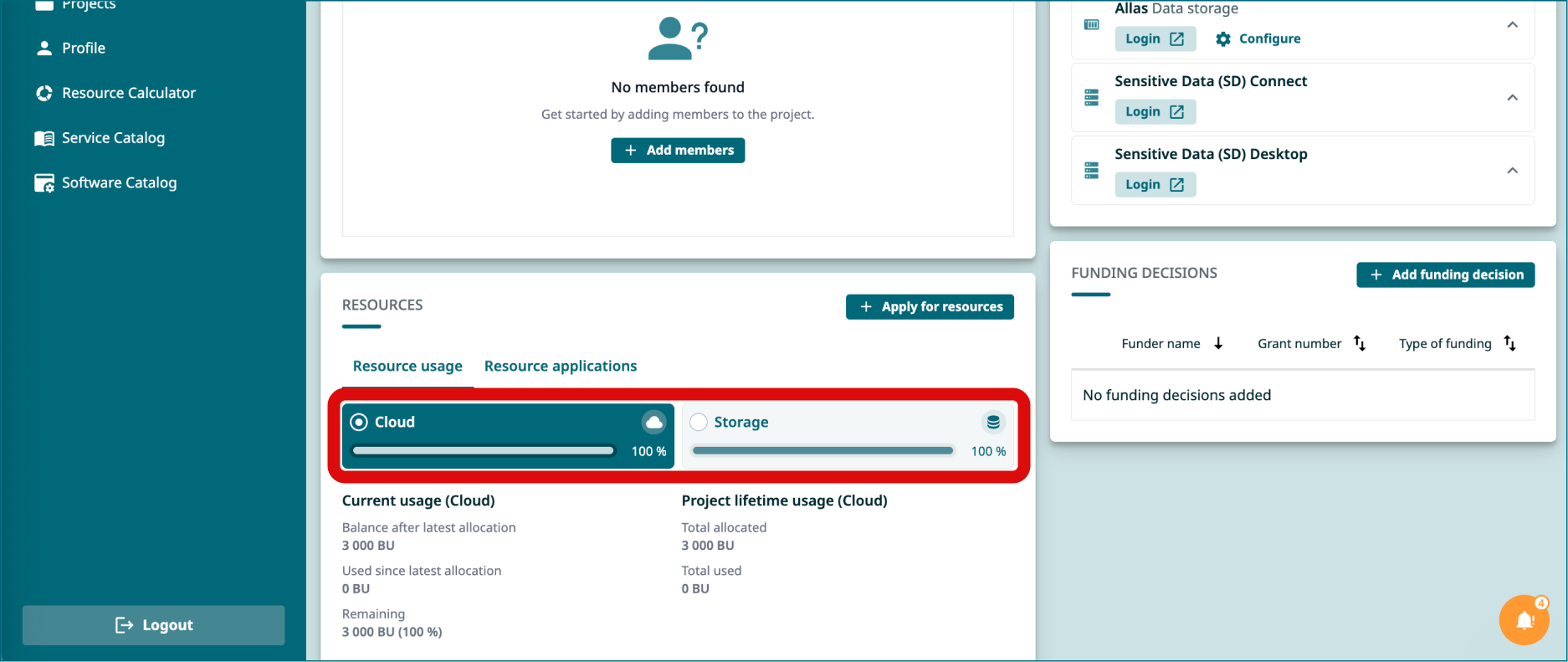
- Scroll down to Resources window.
- You can see Cloud Billing Units and Storage Billing Units usage under from their respective tabs.
1.3 When your project runs out of Billing Units
-
When your project runs out of Billing Units
When an academic CSC project runs out of Billing Units, project members have 60 days to apply for more. If Billing Units remain balance negative after those 60 days, the project will be closed and all data is deleted You’ll receive email notifications in advance when Billing Units are running low.
To prevent this, the project manager should:
- Apply for more Billing Units via MyCSC. This can be also done by a project member.
- Extend the project’s lifetime via MyCSC. This can be done only be the project manager.
Until you apply for more BUs you will have a limited access to the SD Desktop:
- All virtual desktops currently running will automatically be paused in SD Desktop.
- You will not be able to access the virtual desktops content's or unpause them.
2 What is Storage Quota
The storage quota defines how much space is available for storing your project’s data in SD Connect. It represents a capacity limit, not a consumable resource.
For CSC projects with SD Connect enabled, the default quota is 10 TB. If needed, this can be increased up to 200 TB by contacting the Service Desk (subject line: Increase Allas quota).
2.1 How to monitor Storage Quota usage
You can monitor Storage Quota in MyCSC portal.
- Log in to MyCSC.
- Navigate to your project's view.
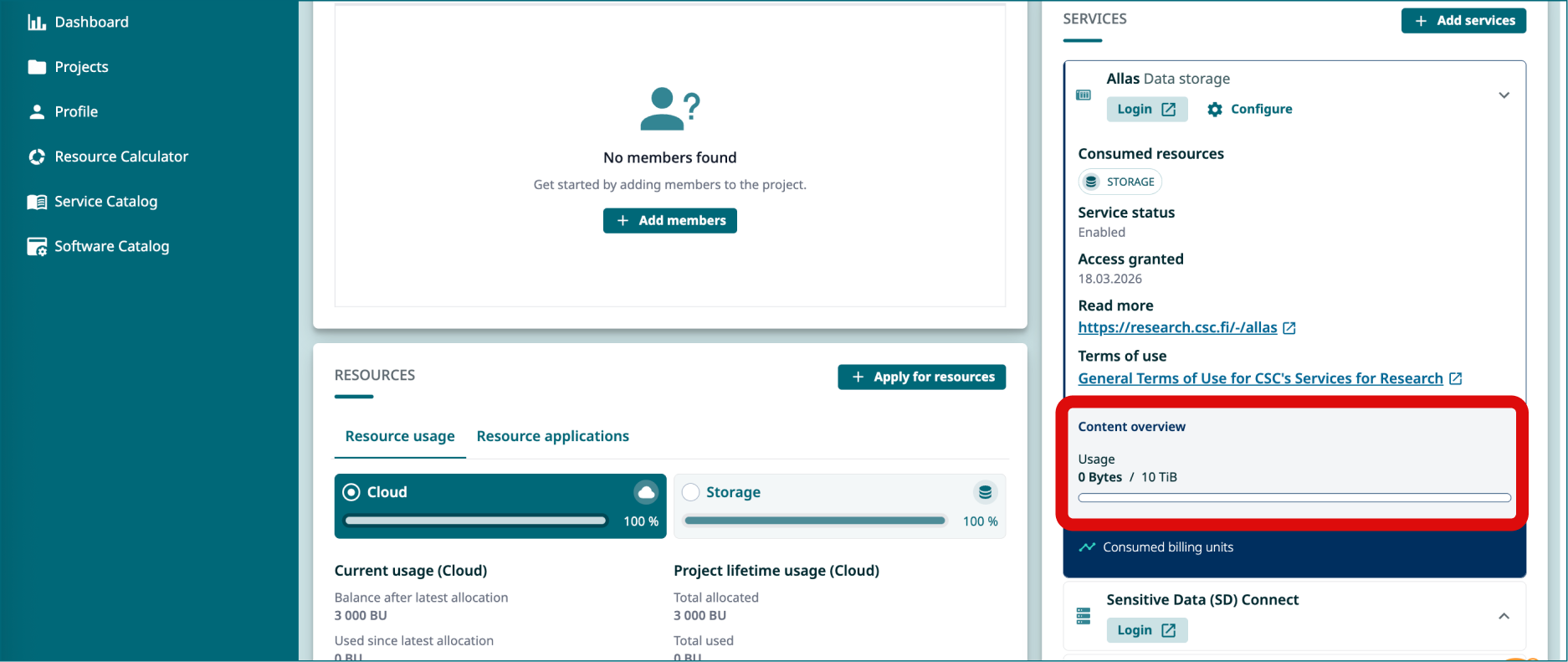
- Scroll down to Services window.
- Click Allas. You can see Storage Quota usage under Usage at the bottom of the window.
2.2 When your project runs out of Storage Quota for SD Connect
- Data upload to SD Connect will no longer be possible.
- Data export from SD Desktop will no longer be possible.
2.3 How to increase Storage Quota
If you have less Storage Quota available than is needed, apply for more:
- Send email to Service Desk (subject line: Increase Allas quota). It takes few days to process your application. We recommend requesting a minimum of 5-10 TB at a time.
- You will receive email when your quota is available.
3 Plan resource usage
3.1 Step 1: Estimate the appropriate Billing Units packages for your project
Estimate the Billing Units your project will consume over the next six months for SD Desktop (Cloud Billing Units) and SD Connect (Storage Billing Units) using the examples provided below. This will help you determine which package to apply for via MyCSC portal. Before you begin, please note:
-
Billing Unit Packages
- Unused Billing Units expire every six months, so request only what you need.
- The Basic, Small and Medium packages have fixed Billing Unit (BU) allocations, while the Large package is flexible and can be defined by you, up to a maximum of 3,000,000 BUs.
- If your virtual desktop has been paused because all Billing Units have been already consumed, apply for the Small Package (30,000 BUs) from MyCSC. It will be assigned immediately, allowing you to resume work. After two weeks, review your usage to see if additional units are needed.
3.1.1 SD Desktop: Cloud Billing Units
SD Desktop consumes Cloud Billing Units type, which reflect the type and number of virtual desktops running and the number of external volumes you've created. To estimate your Cloud Billing Unit consumption, you need to calculate:
-
How many virtual desktops you have running in the CSC project and their type (based on the option chosen during virtual desktop creation). Note running desktops are the main source of billing consumption and when a virtual desktop is paused, consumption is significantly reduced. However, approximately 3 200 Billing Units per year are still charged until the desktop is deleted
-
How many external volumes your CSC project has and their sizes (how many GBs). External volumes always consume Billing Units based on size. This applies even if: the virtual desktop is paused, the volume is detached. Charges continue until the volume is deleted.
If you are unsure where to find the information above, please contact us at servicedesk@csc.fi (subject: SD Desktop). Be sure to include your CSC project number and virtual desktop name in your message so we can assist you.
Here’s a table summarizing the Cloud Billing Units required for using virtual desktops over one year for various options:
| Desktop Option | Cloud Billing Rate (units/hour) | Cloud Billing Units (approximated consumed in 1 year) | Select the correct BU Package in MyCSC and application frequency |
|---|---|---|---|
| Small Computation | 5.2 | 48 000 | Small package, 2 times a year: 30 000 BUs assigned immediately |
| Medium Computation | 10.92 | 98 000 | Small package, 4 times a year: 30 000 BUs assigned immediately |
| Heavy Computation | 65 | 565 000 | Medium package, 2 times a year: 300 000 BUs Processed on average within 1-3 days by a Resource Officer |
| Small GPU Computation | 78 | 685 000 | Medium package, 3 times a year: 300 000 BUs, Processed on average within 1-3 days by a Resource Officer |
| Big Picture project | 195 | 1 700 000 | Large package, 2 times a year: 900 000 BUs, Generally processed every two weeks by the CSC's Resource Allocation Group |
Here’s a table summarizing the Cloud Billing Units required for using volumes over one year for various options:
| Volume Option | Cloud Billing Rate (units/TiB/hour) | Cloud Billing Units (consumed in 1 year) | Select the correct BU Package in MyCSC and application frequency |
|---|---|---|---|
| 200 GB | 4.7 | 8 000 | Small package, once a year: 30 000 BUs assigned immediately |
| 1 TB | 4.7 | 41 000 | Small package, 2 times a year: 30 000 BUs assigned immediately |
| 10 TB | 4.7 | 402 000 | Medium package, 2 times a year: 300 000 BUs Processed on average within 1-3 days by a Resource Officer |
3.1.2 SD Connect: Storage Billing Units
SD Connect stores data into CSC's infrastructure Allas and provides additional automated encryption and encryption key management. SD Connect consumes Billing Units at a rate of 1.4 Storage BUs per TiB per hour.
Here’s a table summarizing the Storage Billing Units required for storing data in SD Connect over 1 year for various storage sizes:
| Storage Size | Storage Billing Units (consumed in 1 year) | Select the correct BU Package in MyCSC and application frequency |
|---|---|---|
| 500 GB (0.5 TB) | 6 000 units | Basic package, 3 times a year: 2 500 BUs assigned immediately |
| 1 TB | 12 000 units | Small package, 1 times a year: 30 000 BUs assigned immediately |
| 10 TB | 120 000 units | Small package, 4 times a year: 30 000 BUs assigned immediately |
| 100 TB | 1 200 000 units | Large package, 1 time a year: 1 200 000 BUs Large resource applications are generally processed every two weeks by the CSC's Resource Allocation Group. |
3.2 Step 2: Apply for billing units via MyCSC portal
You can apply for more BUs for your CSC project via MyCSC portal.
-
Restrictions about applying for Billing Units
After you apply for additional Billing Units, there is a two‑week period during which you cannot submit another application. Because of this, it’s important to request additional resources early. You will receive an email notification when your project’s Billing Units are running low, giving you enough time to apply for more before service availability is affected.
- Sign in to MyCSC with your Haka or Virtu credentials.
- Go to Projects page (left side menu or a hamburger menu at the top right corner).
- Choose a project and click to open it.
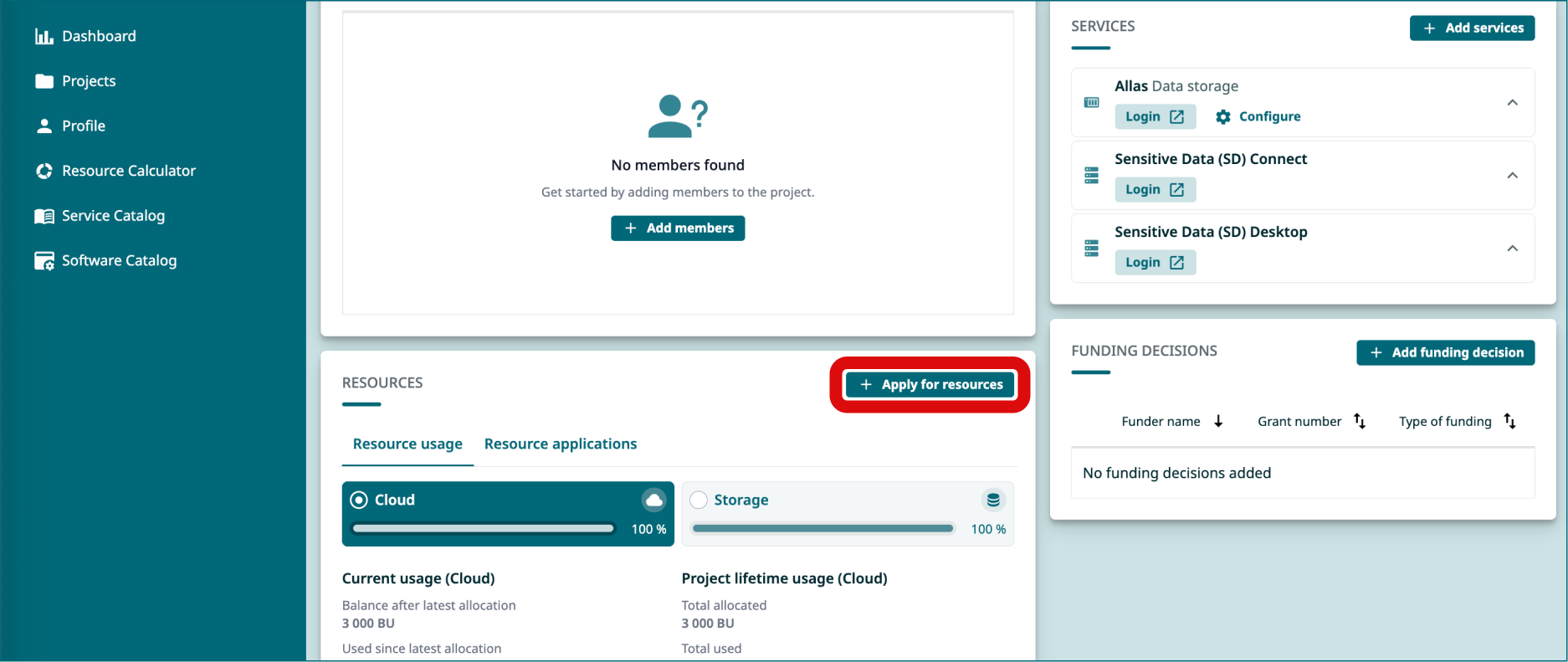
- In the new view, scroll down to Resources window and click Apply for resources. A new window will appear (this might take up to 8 seconds).
-
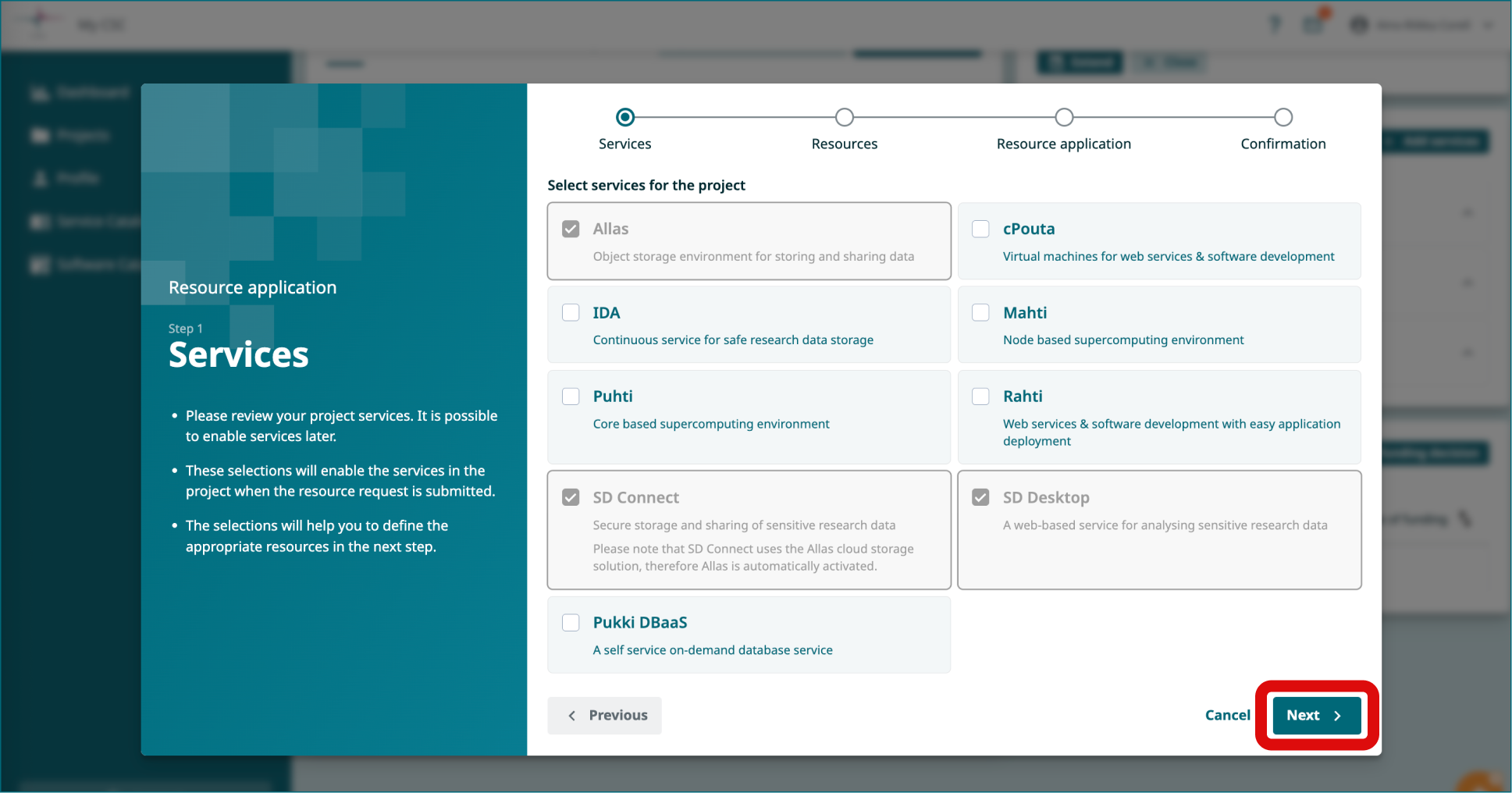
In the new window you will see the services you have active in the project (in gray). Press Next.
-
In the second view, click on the Billing Units package you need for
- Cloud Billing Unit type (used by SD Desktop)
- Storage Billing Units type (for SD Connect)
- Click Next.
-
In the next view, click Add publications. In the new window, you can search or add publications manually. Note: Understandably, if you don't have publications related to this work yet, you can add here any past publication from your research group, even if the project is not directly related. Click Add.
-
Next, you will be asked to add keywords. These will become tags that will help you search for the project. Add a keyword (e.g. research) and press Add.
-
Next, you need to fill in two more fields: Short overview of (expected) results and Program, software, methods used. Click Next.
-
In the last view, you can review the project description and field of science. Finally, you can click Submit.
-
When the Billing Units will be assigned to the CSC Project you will receive an email notification.
Log into services
- Now all the preparations are ready and you can start using the services. Below you'll find links to related user guides:
SD Connect:
SD Desktop: