SD Desktop: major service upgrade (CSC project- Academic type)
Overview
The SD Desktop service has been upgraded to a new version and the changes and new features are not fully backward compatible. This guide explains the actions you need to take to continue accessing your virtual desktop and to restore import/export functionality using the new Data Gateway application.
Your next steps depend on whether your virtual desktop currently has a volume attached.
Step 1: Check if your virtual desktop has an external volume
- Navigate to SD Desktop and click Log in.
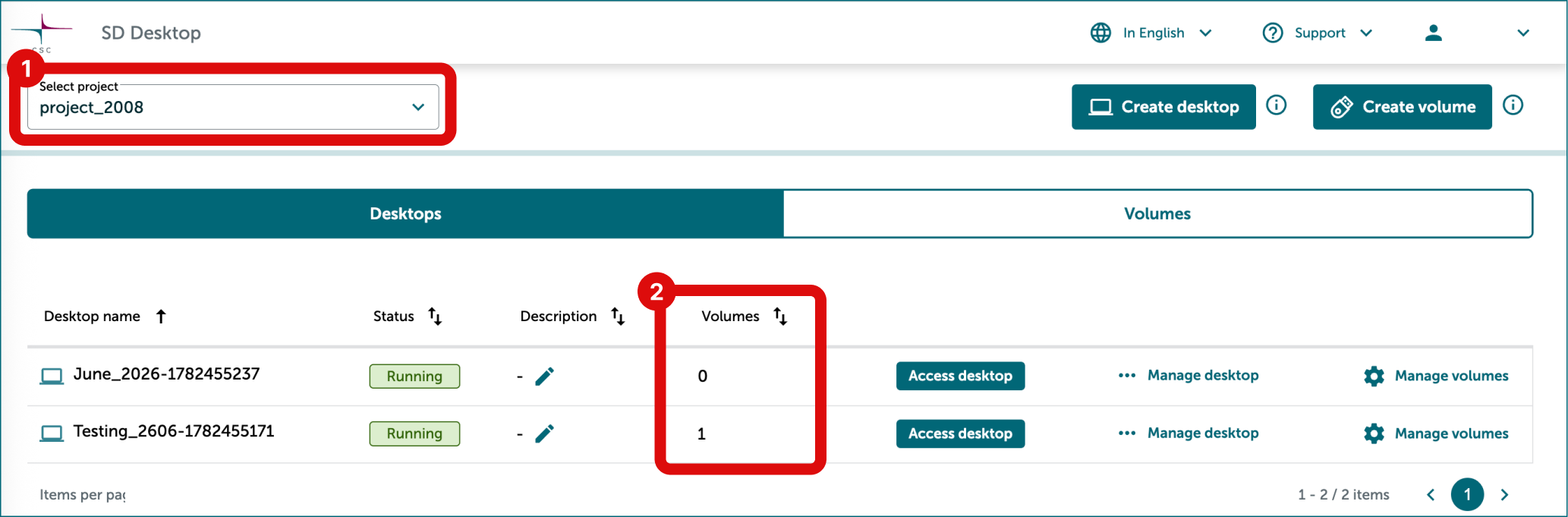
- Select a CSC project from dropdown at the top left.
- Checking Volumes column to see if the desktop has a volume attached. If number is "1" you have a volume attached and if it is "0" you don't have a volume attached.
- Repeat for all projects. You can change CSC project from dropdown at the top left.
Step 2: Choose the correct option for your needs
| Scenario | Recommended Action | Advantages | Disadvantages | Instructions |
|---|---|---|---|---|
| Virtual desktop has a volume and you don't need new features of SD Desktop | Keep the current virtual desktop and install the latest version of the Data Gateway application | - Keep using your existing environment - No need to reinstall the software - Quick and simple solution |
- Outdated operating system without security patches - Cannot attach and detach volumes while virtual desktop is running - Cannot attach multiple volumes to the same virtual desktop - Limited future compatibility - All project members must update the Data Gateway application to the new version |
Step by step guide |
| Virtual desktop has a volume and you plan to continue the analysis long-term | Create a new virtual desktop and attach the existing volume to it | - Fully security-patched environment and newest operating system - Supports attaching and detaching multiple volumes while desktop is running - Latest version of Data Gateway application is available by default - Better solution by long-term |
- Requires some manual work - Requires reinstalling the software - Requires coordination across your reserch team |
Step by step guide |
| Virtual desktop has no volume | Export your data to SD Connect, then import it to a new virtual desktop and volume | - Prevent losing data in case of virtual desktop failures - Up to date and stable environment with latest operating system - Fully security-patched - Supports attaching and detaching multiple volumes while desktop is running - Access to the latest features |
- Requires exporting all files - Requires setting up a new environment - Requires coordination across your reserch team |
Step by step guide |
-
Note
If you need help choosing the right option or following the steps in the guides, please contact us. We are happy to provide online support with step-by-step guidance.
October 19, 2026