Visual Studio Code
The Visual Studio Code interactive app can be used for editing and running code on Roihu. Make sure to load the correct modules before launching the session for the debugger to work correctly.
In the form, you will be able to select the VSCode version as well as any modules you would like to
use:
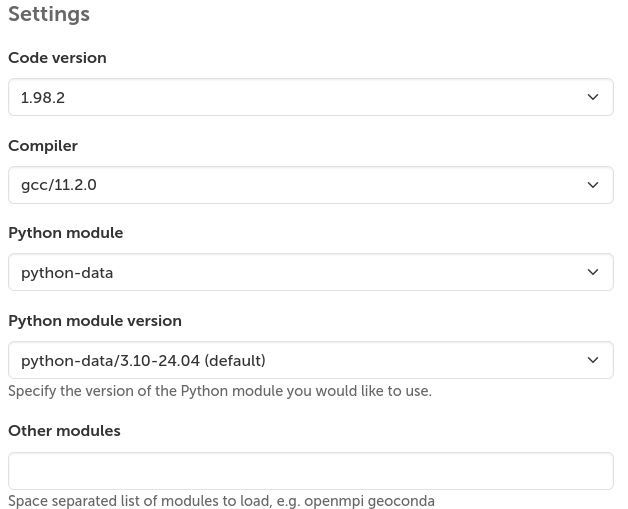 .
.
Extensions
Extensions can be installed in the extensions tab in VSCode.
Dependencies for the extensions need to be loaded or installed for the extensions to work correctly.
E.g. the go module must be loaded before installing the golang extensions in VSCode.
Python
In the application form you can select which Python module and version you would like to use in VSCode. The available modules are the same as in the Jupyter app. Make sure to select the correct Python version in the bottom bar of VSCode, or when starting a Jupyter notebook, as the correct Python is not always selected automatically.
C/C++
The compiler used can be selected when launching the interactive app. The C/C++ extension is not currently available in the extensions tab and must be manually installed. Please check the section below for instruction.
Changing compiler between the Intel compiler and gcc in the workspace may cause issues. Most of the problems can be solved by removing the launch and build configurations and creating them again.
Julia Language
We can use the Julia Language by loading a Julia module, such as julia/1.8.5, when starting the VSCode session.
The Julia for Visual Studio Code extension can be installed to support Julia language features.
Manual installation of extensions
Due to licensing, the VSCode app in the web interface uses the Open VSX Registry for extensions, rather than the official Visual Studio Marketplace. This means that some extensions are not available in the extensions tab in VSCode. Some examples are the C/C++ and GithHub Copilot extensions. However, installing these extensions manually from extension package files is possible.
To install the extension:
- Open VSCode on your local computer, and open the page for the extension.
- Click on the cog icon, and then on the Download VSIX. Note that if the extension is already
installed, the download option may not be available.
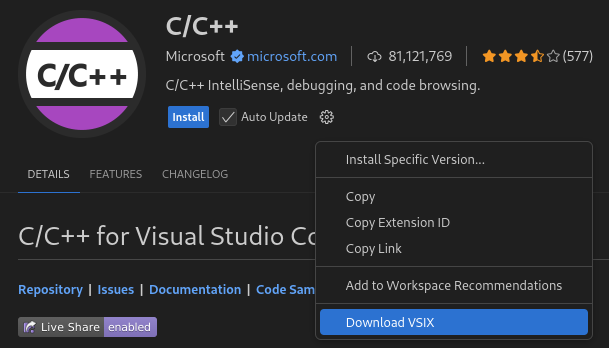 .
. - Select the Linux x64 version in the menu that appears.
- Upload the extension package, e.g.
ms-vscode.cpptools-1.x.x@linux-x64.vsixto Roihu, for example using the file browser in the web interface. - Open VSCode in the web interface and navigate to the extensions tab.
- In the extensions tab in VS Code, click the three dots at the top to open a menu.
- Click Install from VSIX...
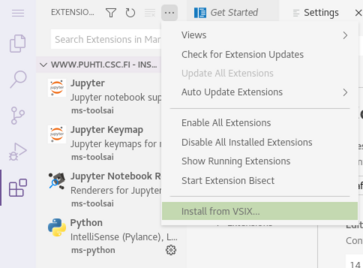 .
. - Navigate to the directory where you uploaded the
.vsixfile and select the file. - If the installation was successful, you will be prompted to reload your session to activate the extension.
Troubleshooting
- If VSCode does not work properly you can clear the settings and launch the application again. This can be done done by deleting the folder
~/.local/share/csc-vscode.