How to get access to Roihu large and gpularge partitions
Projects running well-scaling codes can get access to the large partition (6-60 nodes) on Roihu-CPU, by applying for it in MyCSC. Access to the gpularge partition (1-10 nodes) on Roihu-GPU follows the same pattern.
First, a 30-day test period for the large or gpularge partition is requested. Second, during the test period, the scalability and parallel performance of the code are demonstrated with appropriate test runs. Finally, the project manager submits the results for evaluation by CSC.
The process is described in detail below.
Test access to the large partition on Roihu
To request the 30-day test period, proceed as follows:
- Login to MyCSC and in the Projects menu select the project you want to modify.
- In the Services list, open the settings for the Roihu service by clicking Configure. This opens a page where the project manager can modify the settings for disk quotas (Quota settings) and request access to the large or gpularge partition under Large partition settings, and GPU Large partition settings. Click open Large partition settings.
- Click the Apply for trial access button. After access has been granted, you will be able to submit jobs to the large or gpularge partition.
Immediate access to large/gpularge partitions
Right after you click the Apply for trial access button, you will be granted test access to the large partition. Note that scalability results, as described in the section below, are expected 30 days after this.
Only apply for access to the large partition after you know that you can produce a scalability report using it, in the next 30 days.
After you apply, CSC will contact you in the following days to provide help with understanding your program’s runtime characteristics and identifying possible bottlenecks in its execution. Based on the initial discussion over email, you can either opt out of further support or continue working with CSC to better understand your parallel application’s use of computing resources, such as memory usage and CPU or GPU utilization, during runtime.
See more details about CSC's code optimization service.
Scalability testing
In the second phase, test runs demonstrating the scalability are to be performed. Here are some general guidelines for scalability testing.
- Testing should be done for at least three different node counts up to the
target in production (for example with 10, 20, 30 and 40 nodes on Roihu-CPU, or with 1-10 nodes on Roihu-GPU).
- Choose the smallest node count as the smallest value, where your input data can be stored on the nodes.
- The input data must be the same for all runs.
- Tests must be run on Roihu, through the Slurm batch job system.
- The test runs should reflect real production runs. For example, the number of atoms, number of grid points, disk I/O load, and other relevant parameters should be similar to those used in production.
- In scalability testing, however, you are not expected to showcase full production runs of your
program. Choose a test run where you run a short job, by minimizing the amount of,
for example, time steps, iterations, etc. that your job executes.
- The run time should still be long enough that initialization does not significantly affect results. Typically, a few minutes for the shortest run time (largest node count) is fine.
- Especially in some AI/ML workflows, the initialization stage can take a long time. Choose your parameters so that the initialization stage does not dominate the total run time and so that the run time after initialization is sufficiently long.
- Parameters affecting the scalability can, and are encouraged to be, changed. Note also the performance checklist.
- The minimum requirement is 75 % parallel efficiency.
- This corresponds to a speedup of 1.5 when doubling the number of nodes, or a speedup of 3 when quadrupling them, and so on.
- Parallel efficiency is described with the following formula:
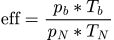 , where
- pb is the number of processing units in the baseline case
- pN is the number of processing units in a scaled-up case with N nodes
- Tb is the total time spent in execution in the baseline case
- TN is the total time spent in execution in a scaled-up case with N nodes
To get started with gathering runtime characteristics of your program, see CSC documentation on performance analysis.
Reporting
The scalability report should contain:
- A short description of the software and the test case
- If the software is not pre-installed by CSC, you are also expected to briefly describe the parallelization strategy used in the software, and to include details about the I/O implementation and load of the program at runtime
- Wall-times for each node count in your test case
- If you are applying for access to the gpularge partition, you should also showcase GPU utilization during the program run time.
- A representative batch job script (as an attachment or in the free-form justification)
Additionally, if the application was run with hybrid MPI/OpenMP parallelization, attach the stderr of a
single run where the following settings are applied:
export OMP_AFFINITY_FORMAT="Process %P level %L thread %0.3n affinity %A"
export OMP_DISPLAY_AFFINITY=true
Reporting the results of the test runs or applicable previous scalability data is done through the MyCSC portal as follows:
- Log in to MyCSC, and select the project you want to modify in the Projects menu.
- In the Services list, click open the settings for Roihu service (Configure). This opens a page where the project manager can modify the settings for disk quotas (Quota settings) and request access to the large partition (Large partition settings). Click open Large partition settings.
- For the results and justification, there is a text box and possibility to attach documents (please remember to upload the documents after you have selected them). Multiple documents can be attached. Finally, submit the justification.
- CSC experts will evaluate the results and grant production access to the large or gpularge partition. If there is a problem with the code performance, the project manager will be contacted.
Assistance
CSC experts can help users perform scalability tests if needed, and can also provide advice for improving the performance of their software. Contact CSC Service Desk if you need assistance with your software.