Table of contents of user guide
Downloading buckets and files
On this page
- 1. Download and automated decryption
- 1.1 Download size
- 1.2 Download performance
- 1.2 Using a work laptop
- 2. Downloading bucket content
- 3. Downloading individual files
- 4. Problems downloading or opening files
1. Download and automated decryption
Via the SD Connect user interface you can download either the entire bucket contents, folders stored in it or individual files. The user interface automatically decrypts the data during the download process, so the downloaded files are ready to use.
1.1 Download size
The user interface supports downloads of up to 100 GB. For larger downloads, we recommend using the command-line tools. If you need assistance, contact the CSC Service Desk at servicedesk@csc.fi.
1.2 Download performance
Download performance through the user interface depends largely on your internet connection speed and network availability. Even with a fast fiber-optic connection, Wi-Fi performance between your router and computer can limit the overall download speed. As an example, downloading a single 20 GB file takes approximately 2 hours (observed download speed 40 Mbps). As actual download times depend on network conditions, Wi-Fi performance, browser overhead and other network traffic, for large downloads we recommend connecting your computer to the network with an Ethernet cable whenever possible.
1.2 Using a work laptop
If your laptop is managed by your organization’s IT department, security settings may interrupt large downloads to the default Downloads or Documents folders. To avoid this, we recommend creating a dedicated download folder.
2. Downloading bucket content
-
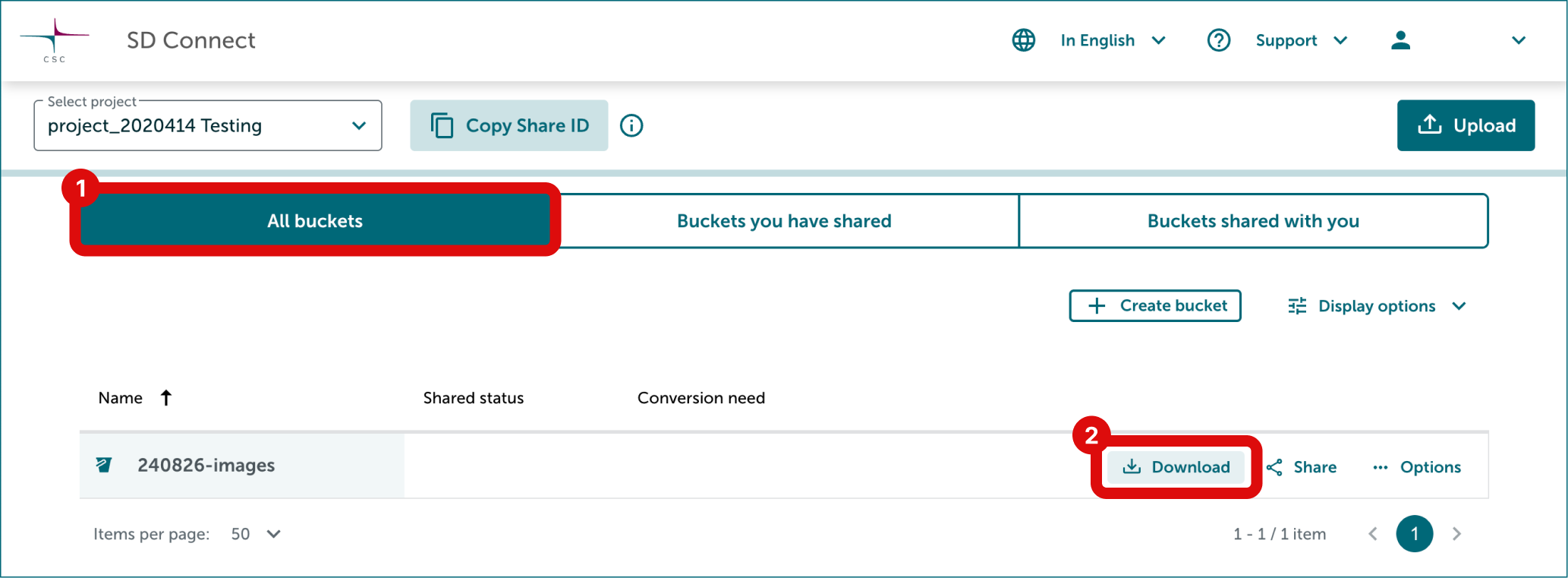
Find the correct bucket from All buckets tab.
-
Click Download button on the right side of the bucket you want to download.
-
Accept cookies if needed: A pop-up window may appear at the top of your browser asking for cookie consent. The download will not start until cookies have been accepted.
-
Wait for the download to complete: a progress bar will show the download status. Once finished, open Downloads folder on your computer, where you may see two files:
- .tar file – This is the actual file containing your downloaded bucket.
- .tar.part file – This is a temporary file created while the .tar file is still downloading.
- If both the .tar and .tar.part files are present, the download is still in progress. Your browser will continue downloading in the background.
- Do not open or extract any files until the .tar.part file disappears and the .tar file shows a proper file size (not 0 bytes). This ensures that the download has completed successfully.
-
Files are decrypted automatically. The downloaded bucket has a .tar extension, double-click it to extract the contents into a new folder.
3. Downloading individual files
-
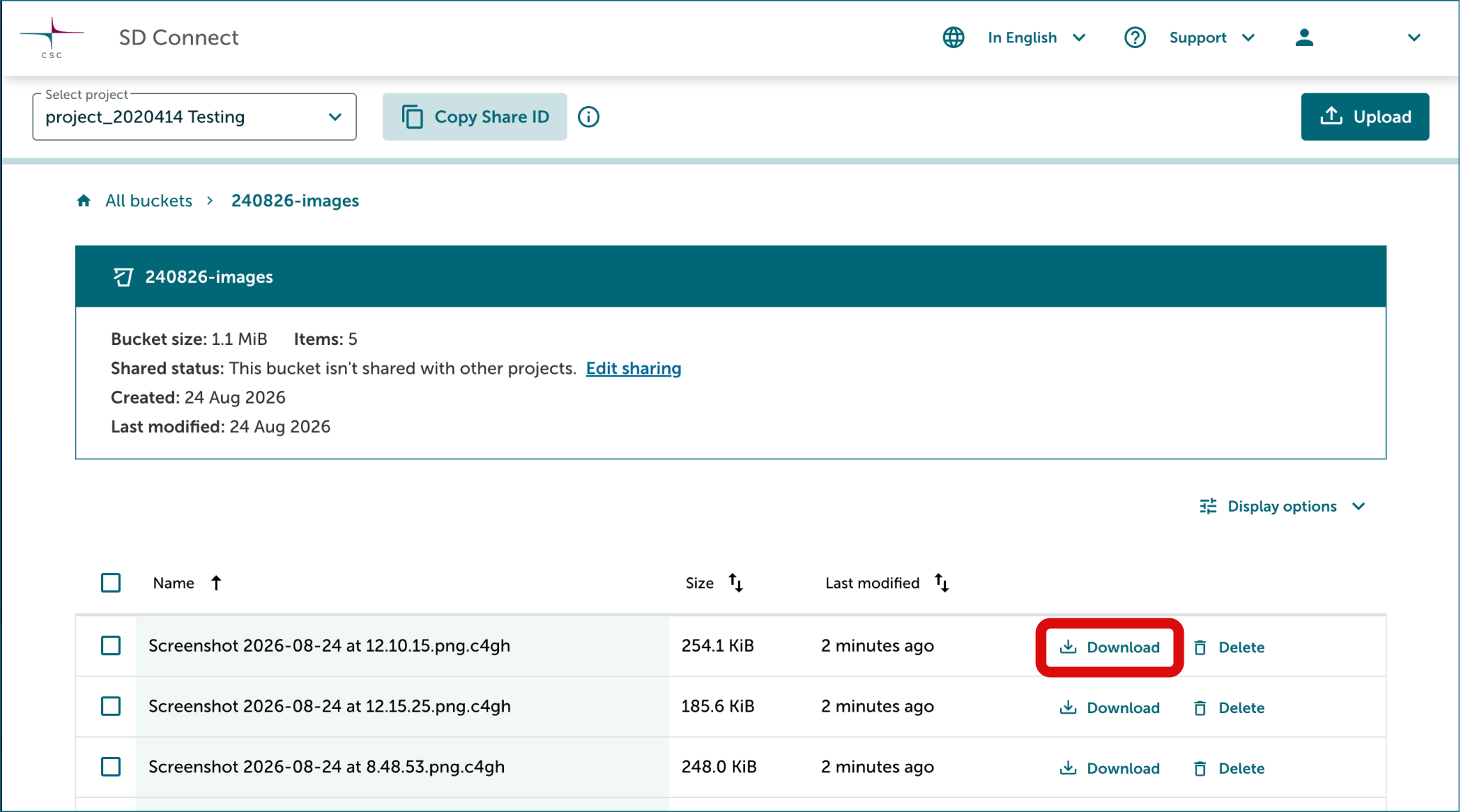
Find correct bucket from All buckets tab and click to open it.
-
Click Download button on the right side of each file you want to download. Note that files are downloaded one-by-one.
-
Accept cookies if needed: A pop-up window may appear at the top of your browser asking for cookie consent. The download will not start until cookies have been accepted.
-
Wait for the download to complete: a progress bar will show the download status. Once finished, open your local download folder, where you may see two files:
- .tar file – This is the actual file containing your downloaded file.
- .tar.part file – This is a temporary file created while the .tar file is still downloading.
- If both the .tar and .tar.part files are present, the download is still in progress. Your browser will continue downloading in the background.
- Do not open or extract any files until the .tar.part file disappears and the .tar file shows a proper file size (not 0 bytes). This ensures that the download has completed successfully.
-
Files are decrypted automatically and are now ready to be used.
4. Problems downloading or opening files
-
If you encounter an issue while downloading files, see the section for common solutions and instructions on how to report the issue.
-
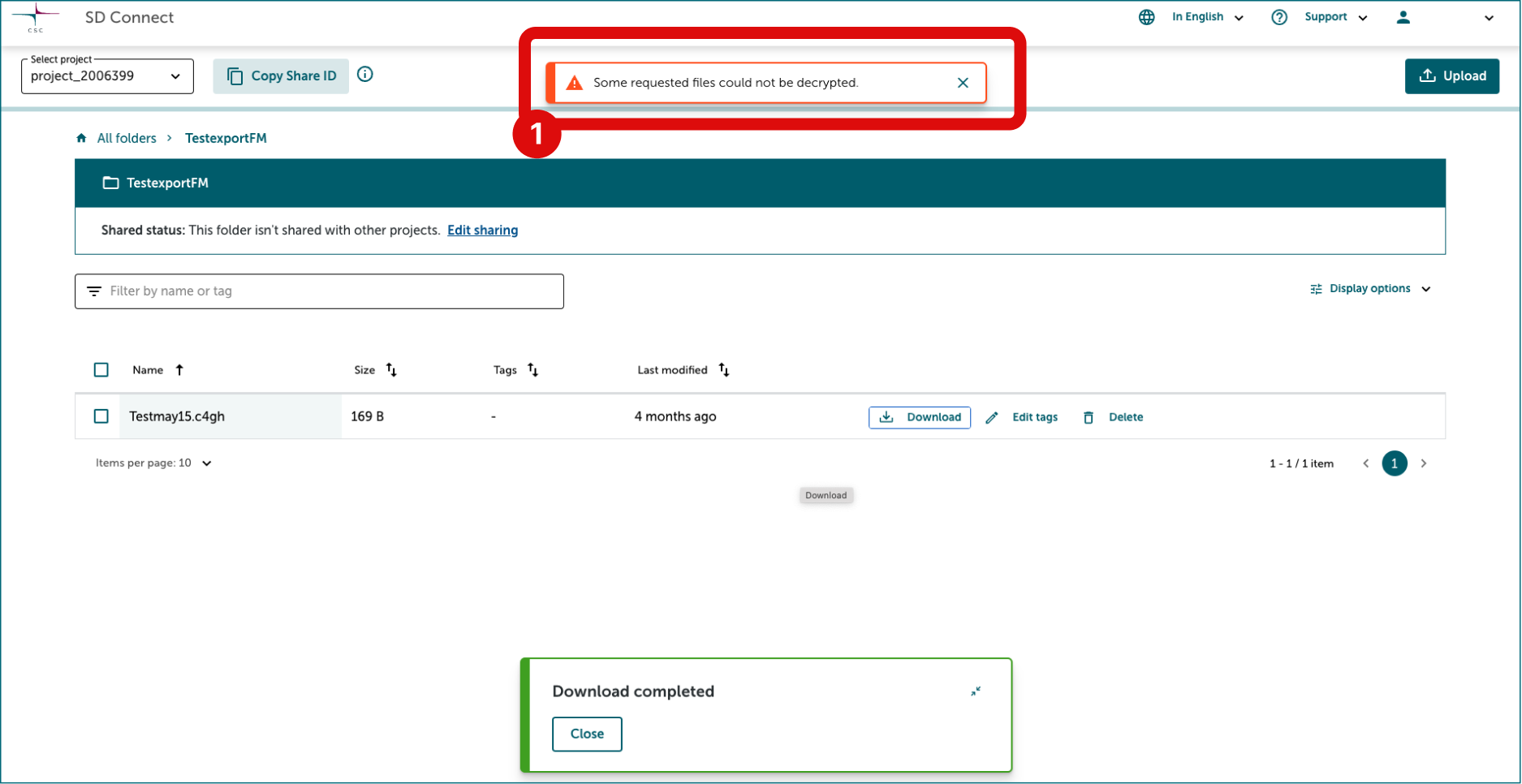
"Some downloaded files need manual decryption." If you see this message during the download, the files were either uploaded before October 2024 or were exported via SD Desktop before October 2026 and and require an additional decryption step. Please refer to this documentation for guidance.