Creating a new project
A CSC user account is required for creating new projects.
- Login to MyCSC with your CSC user account or Haka/Virtu account.
- Choose Projects in the navigation menu on the left.
- On the right click + New project.
- Choose the Project category. Available categories are:
- Fill in the Project name, Project description and all the required fields.
- Select the services you want to use in this project.
- Adjust the resource packages for your project.
- Read and accept the terms of use.
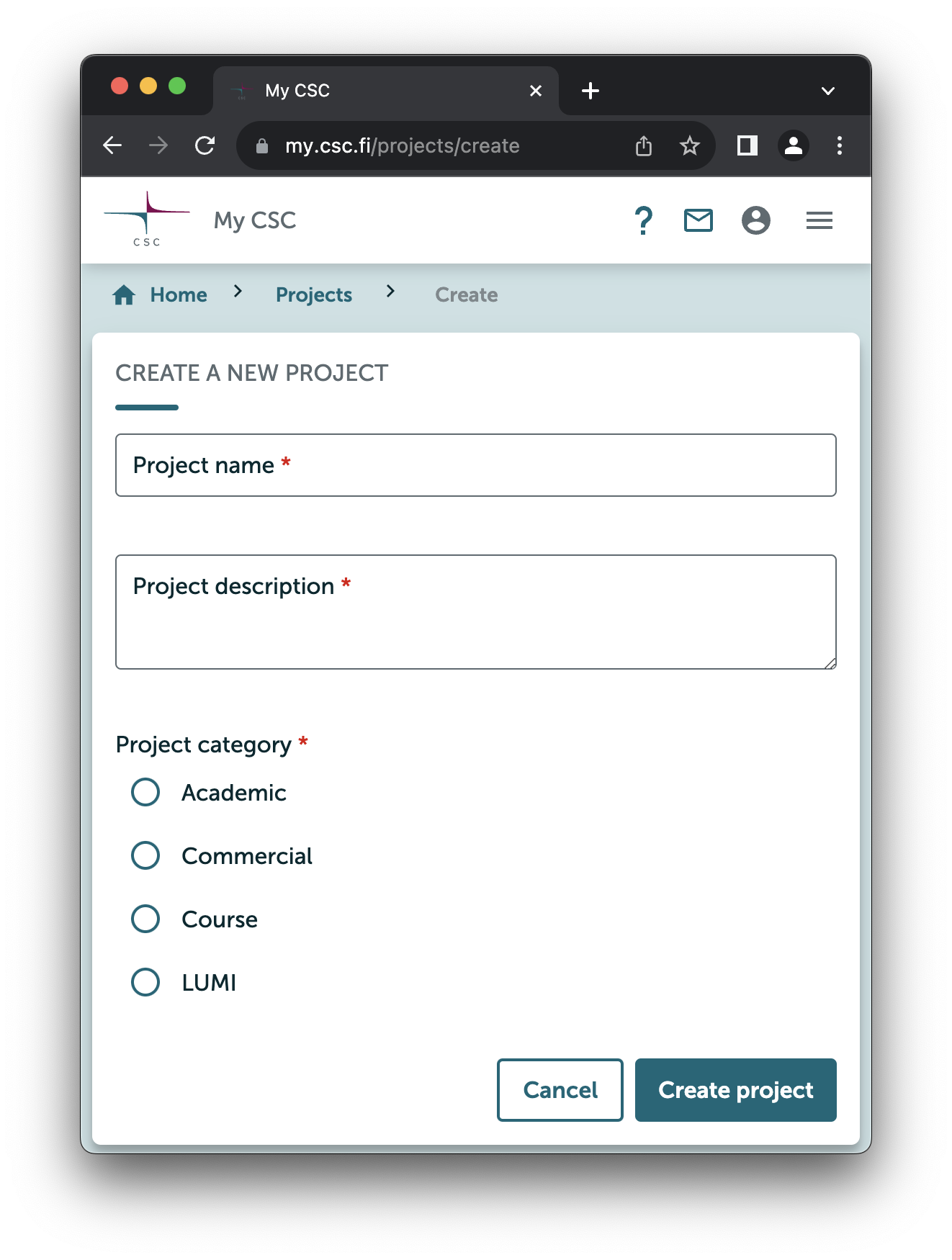
Academic
Academic project category is reserved for free-of-charge use cases and they can be created only by members of Finnish higher education institutions, state research institutes and CSC.
Note
If you are an educator and need resources for a course, check out the Course project category. If you are a student, have a look at the Student project category.
- Please select the Field of Science and Sub Science Area of the type of research being carried out in the project.
- Select Yes or No according to whether personal data will be handled in your project. Read more about handling personal data in your project.
- Please have a look at our terms and conditions and confirm your acceptance.
- Click Create project.
Academic projects are usually valid for one year at a time, but they can be extended. To extend a project, please see page How to manage your project.
Commercial
Commercial projects are currently only available through the Service Desk. Please contact CSC Service Desk for more information.
Course
The course category is reserved for free-of-charge use cases. This category project is a fixed time (maximum of 6 months, non-extendable), fixed resource and is designed to deliver a course once. Re-delivering the course requires a new project. Please note, that all data is deleted at the end of the project.
- Fill in the course dates and field of science.
- Please have a look at our terms and conditions and confirm your acceptance.
- Click Create project.
The easiest way to add students to a course project is to use an invitation link.
Dataset project
Dataset projects are used to share data between CSC projects in Roihu. A dataset project provides a shared disk area under /dataset/<project> in Roihu, but it does not include computational resources. A dataset project consumes storage billing units.
Use a dataset project when you need to maintain one shared copy of data that several projects can read.
Dataset project access begins in early August
You can already apply for a dataset project in MyCSC. Based on the applications, the first dataset projects will be approved and granted access in early August 2026.
Each dataset directory has one owning project with write access. Other projects (or even all projects on the system) can be granted read access to the same dataset directory.
A dataset project is valid for one year. After that, you need to apply for an extension if you want to keep using it. Dataset projects are intended for datasets up to a few terabytes in size and the dataset should be in active use.
Dataset project is not intended for long-term data storage
When applying for a dataset project:
- Specify the dataset name, description, and field of science
- Specify the owner of the dataset
- Provide a justification, an exit strategy, a PID if available, and the intended audience for this dataset
- Select "Dataset project is intended for public access" if the dataset can be accessible by all current and future projects on the system
- Apply for quota. Request only the amount of data you actually need.
Adding access to the dataset
After creating the dataset project, you can configure access to it.
A public dataset is by default accessible to everyone in the system.
When configuring access, you can add access to:
- Single or multiple users
- Individual or multiple projects
- Your whole organization
When granting access to the whole organization, all users on the system affiliated with your home organization will gain access to reading the dataset. Additionally, all users who are a part of a project created by your home organization, will gain access.
How to create Finnish LUMI projects
LUMI projects are used to manage access to LUMI and the resources provided by it. LUMI projects are restricted to LUMI environment only (LUMI-C, LUMI-G etc.). Finnish LUMI projects are fixed in time and resources, and the total resources must be defined already in the project application.
A Finnish LUMI project can include one or several CSC user accounts and one CSC user account can be a member in several Finnish LUMI projects. Each LUMI project must have a Principal Investigator (i.e. Project Manager), who creates the project and applies for resources, manages the user accounts that belong to the project and is responsible of the resource usage. The LUMI Project Manager is typically a leader of a research team or other senior researcher. See more for project manager prerequisites.
LUMI services are free of charge for academic research for members of Finnish higher education institutions and state research institutes.
Creating a LUMI project and applying for resources
- Select LUMI from the Project category list.
- Select LUMI Access mode (Regular, Benchmark, or Development)
- Fill in the resources: CPU core hours, GPU hours, Storage hours, and all the text fields carefully below. If the data is incomplete or insufficient, the application will be rejected. For Regular Access applications, a list of prior publications and a proper research plan are required. For Benchmark Access, a plan of how the resources will be used for the benchmarks is required, and for Development Access a description of program codes, methods and development objectives is required.
- Select the Field of Science, and fill in the Keywords.
- Does your project handle personal data? Please note: LUMI projects are not allowed to handle personal data at present.
- Tick the box I have read and accepted the LUMI General Terms of Use.
- Click Create project.
Once you have created the project, invite the project members. Your LUMI project application will be sent to the CSC Resource allocation administration to be processed. The CSC Resource allocation group has meetings every two weeks.
Please note that LUMI access is provided only with SSH keys, not with passwords. After you have received an acceptance confirmation email for your LUMI project request, please upload your public SSH key to MyCSC according to the instructions.
For further information on LUMI projects please visit Users in Finland
Student
A student can be the project manager of the student project. Please read the Getting started with the Student Project carefully and then you can continue with the instructions below.
The student category is reserved for free-of-charge use cases. This category project is a fixed time (maximum of 6 months, non-extendable), fixed resource and is designed to support student's work with higher educational institutes' courses and thesis work.
- Login to MyCSC with your CSC user account or Haka/Virtu account.
- Choose Projects in the navigation menu on the left.
- On the top of the page choose + New project.
- In the name field, enter a descriptive name for your project. This could be the name of the course or the topic of your thesis work, for example.
- In the description field, please indicate whether this is a course-related project or a project related to your thesis work, for example.
- Select the end date of the resource need or course, but no more than six months from the project creation date.
- In the comments field, please fill in the university course code and title or name if available.
- Fill in the field of your studies - or the closest approximation.
- Please read our terms and conditions and confirm your acceptance.
- Click Create project.
If you wish, you can add other members to your project. The easiest way to do so is to use an invitation link.
Right to create CSC projects based on Haka affiliation
Here we describe how the Haka identity linked to your CSC account affects your right to create academic, course and student type CSC projects. During your Haka login we get information about your position in your home organisation. Below this information about your position is called "Haka affiliation information". In the table below you can see how Haka affiliation affects on the right to create and act as the Project Manager of a CSC Project.
| Haka Affiliation (eduPersonScopedAffiliation) | Description (from Haka documentation) | Academic Project | Course Project | Student Project |
|---|---|---|---|---|
faculty@org.fi |
research and education workers at laboratories and institutes; e.g. professors, researchers, lecturers, assistants, whether employed by the institution or some other organisation (such as Academy of Finland). Docents may be affiliated as faculty, if they are actively involved in research or education in an institute. | ✅ | ✅ | ❌ |
staff@org.fi |
administrative workers at the institution, whether employed by the institution or some other organisation | ✅ | ✅ | ❌ |
employee@org.fi |
a person actually employed by the institution | ✅ | ✅ | ❌ |
student@org.fi (without being faculty, staff or employee) |
a student who has registered as being present (läsnäoleva). | ❌ | ❌ | ✅ |
member@org.fi (without being faculty, staff or employee) |
This value covers all categories mentioned above plus students taking qualifying education courses, further education courses or open university and further education center students (pätevöitymiseen tähtäävä täydennyskoulutus, muu täydennyskoulutus, avoin yliopisto/korkeakoulu, täydennyskoulutuskeskuksen opiskelijat). | ❌ | ❌ | ✅ |
In addition, you may have one or more of the following Haka affiliation information types, but these do not give you the right to create CSC Projects: affiliate@org.fi, alum@org.fi, library-walk-in@org.fi
More information about the policy in Prerequisites and responsibilities for a CSC project manager.
Note: If you are not eligible to be the Project Manager yourself, you might have a supervisor or colleague that can create a CSC Project and add you as a CSC project member.
Checking your Haka affiliation information
You can check your Haka attributes in MyCSC portal:
- Go to https://my.csc.fi/userinfo and click on Retrieve userinfo
- Log in with your organization's Haka ID
- Your affiliations are in the eduPersonScopedAffiliation section
Problems with the Haka affiliation information
- If you cannot create a CSC Project, please log in to MyCSC again with Haka to update your Haka affiliation information.
- If you think that your Haka affiliation information may be incorrect, please contact your home organisation.