Changes to Billing of SD Desktop External Volumes
Introduction
Starting June 3, 2026, SD Desktop external volumes will start consuming Cloud Billing Units from your CSC project.
Please ensure you have sufficient Billing Units for the next 5–6 months by following the step-by-step guidance below. If needed, apply for additional Billing Units via the MyCSC portal as soon as possible. Processing times may vary, so please allow sufficient time.
-
Step 1: Check if your virtual desktop has an external volume
-
Step 2: Calculate how many Cloud Billing Units volumes consume
-
When your project runs out of Billing Units
Please note that your CSC project must have sufficient Billing Units to remain active. If the Billing Unit balance of your CSC project becomes negative, your virtual desktop will be paused, the CSC project will be closed after 60 days and all project data will be permanently deleted 90 days after project closure.
Step 1: Check if your virtual desktop has an external volume
-
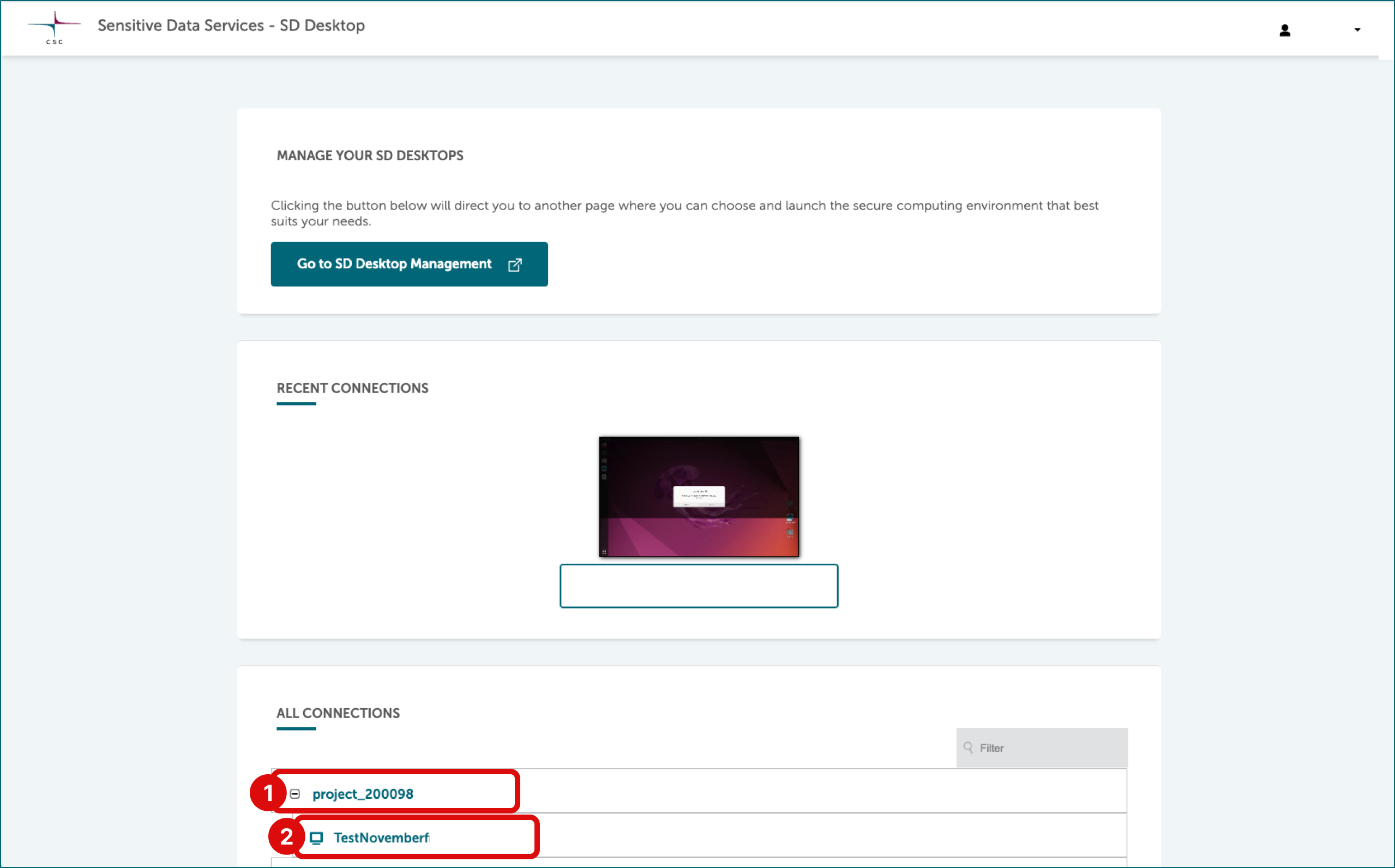
Log in to SD Desktop. All your virtual desktops are listed at the home page under All connections.
-
Select project (e.g.
project_NNNNN) and click plus icon. -
Now you can see all virtual desktops that belong to this project (
desktopname-NNNNNNNNNN). Access virtual desktop by clicking the name. If you encounter a black screen, your virtual desktop is probably paused and needs to be resumed. -
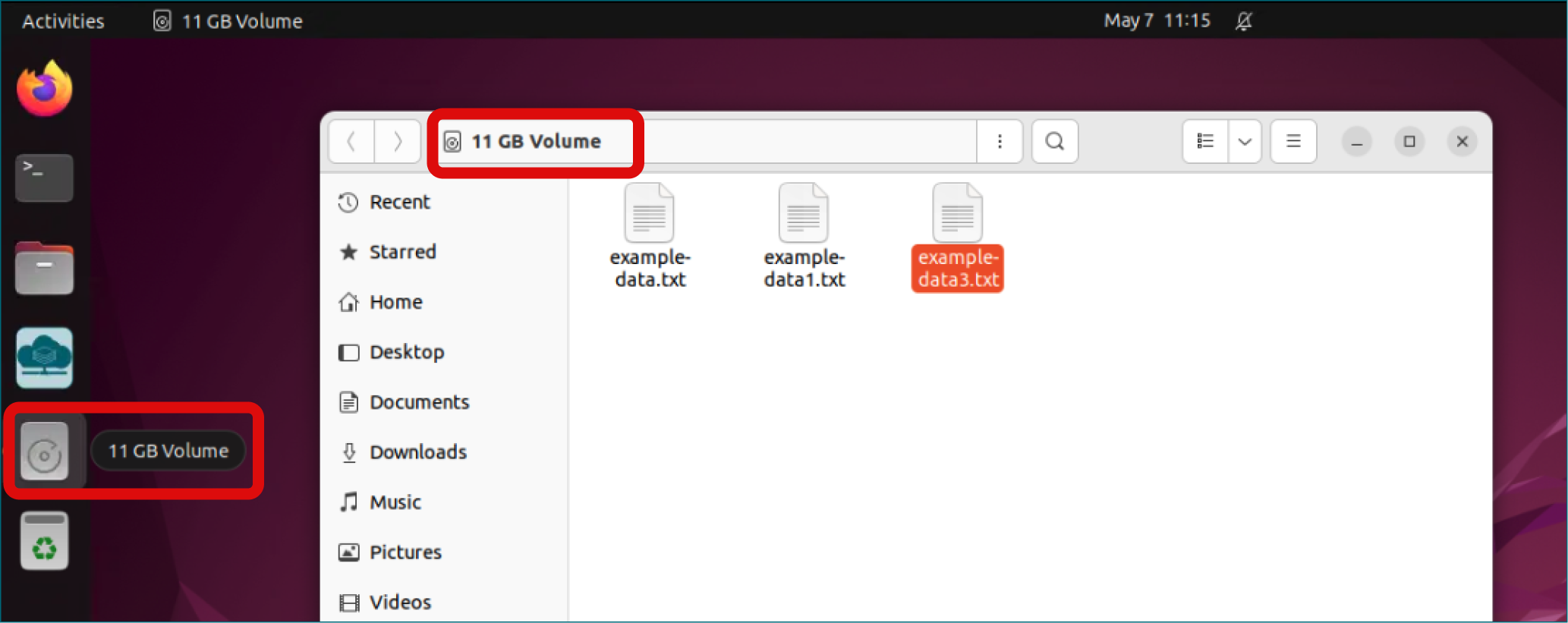
On the left navigation bar click on the volume icon and check the volume size (GB).
-
Repeat these steps for all the virtual desktops in your CSC projects.
Step 2: Calculate how many Cloud Billing Units volumes consume
Volumes consume 4.7 Cloud Billing Units/Tib/ Hour. Below is a table summarizing the Cloud Billing Units required for using a volume for one year for various options and corresponding Billing Units package you can apply for via MyCSC.
| Volume Size | Cloud Billing Rate (units/TiB/hour) | Cloud Billing Units (consumed in 1 year) | Select the correct BU Package in MyCSC and application frequency |
|---|---|---|---|
| Up to 500 GB | 4.7 | 20 000 | Small package, once a year: 30 000 BUs assigned immediately |
| Up to 1 TB | 4.7 | 41 000 | Small package, 2 times a year: 30 000 BUs assigned immediately |
| Up to 10 TB | 4.7 | 402 000 | Medium package, 2 times a year: 300 000 BUs Processed on average within 1-3 days by a Resource Officer |
Step 3: Verify in MyCSC if your CSC project has sufficient Cloud Billing Units and apply for more if needed
- Log in to MyCSC.
- Navigate to your project's view.
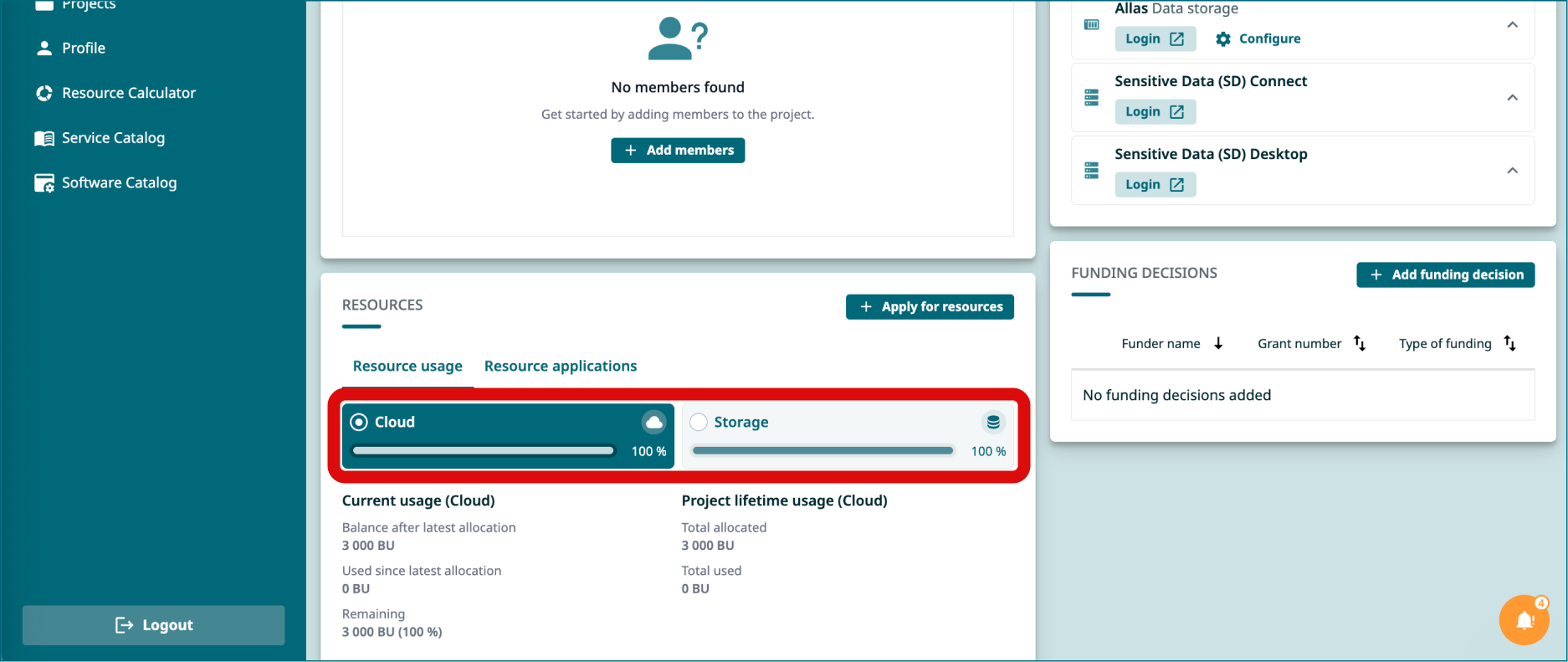
- Scroll down to Resources window.
- You can see Cloud Billing Units usage under its tab.
- If your project doesn't have enough Cloud Billing Units, apply for additional units.
- If you had received email notifications about Billing Units are running low, you need to extend the project’s lifetime via MyCSC. This action can only be performed by the CSC project manager.
-
Note
- Any project member can apply for additional Billing Units.
- Small packages are assigned immediately, while Medium packages may take up to 3 days to be processed.
- After submitting an application, there is a two‑week period during which you cannot submit another request. For this reason, it is important to apply early.
- During the application process, you will be asked to attach scientific publications. If you do not yet have publications directly related to the current research, you may include any relevant past publications from your research group, even if they are not directly linked to the project.