Manual encryption and decryption
1. Download and manual decryption for files uploaded before October 2024
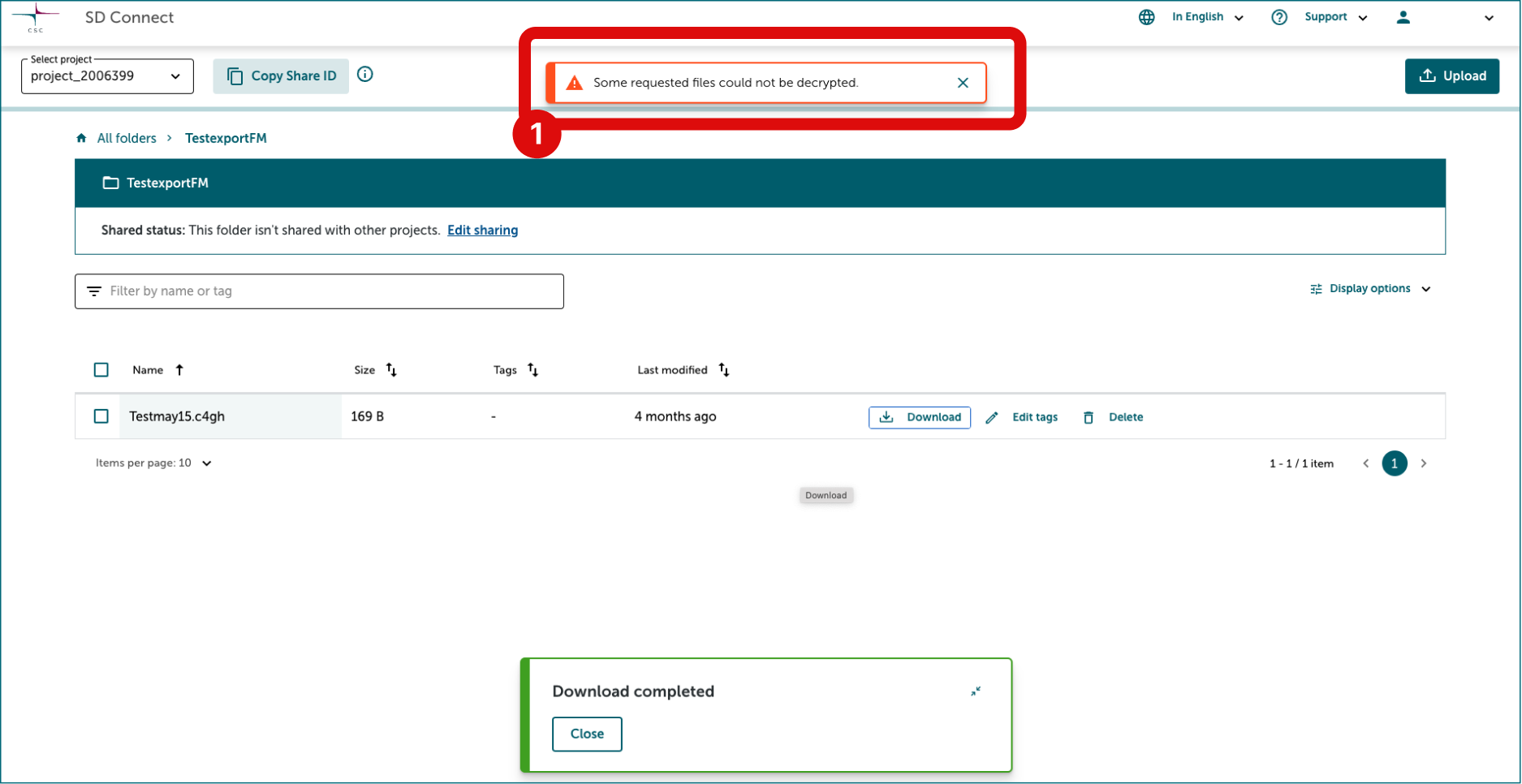
If you see the message "Requested files could not be decrypted" during download, the file requires an extra decryption step. After downloading, use the Crypt4GH application on your laptop to decrypt the file by following the provided instructions.
Please note that you can only decrypt one file at a time. If you need to decrypt multiple files at once, a command line option is available. For further assistance, contact CSC Service Desk.
1.1 Preparation
-
Have your private encryption key available. If you don’t remember the key used, please contact CSC Service Desk.
-
Download the Crypt4GH graphical user interface on your laptop. This tool is necessary for decrypting the files. If you experience any issues installing the tool, especially on a laptop provided by your IT department, please contact us for assistance.
-
Install the Crypt4GH application: CSC has developed a simple application that will allow you to generate your encryption keys and decrypt data when necessary. Download the version specific to your operating system from the GitHub repository:
Please check that the tool for Windows has been digitally signed by CSC - IT Center for Science. After the download, you can find the Crypt4GH application in your downloads folder. When you open the application for the first time, you might encounter an error message. In this case, click on More info and verify that the publisher is CSC-IT Center for Science (or in Finnish CSC-Tieteen tietotekniikan keskus Oy) and then click on Run anyway.
1.2 Download the files from SD Connect
Access SD Connect and locate the files you need. You can download either the entire bucket or individual files. At the end of the download, the user interface will display the message: "Some downloaded files need manual decryption."
1.3 Change the file extension
After downloading the files, you need to adjust their extensions. Right-click the file, choose "Rename," and add .c4gh to the end of the filename. If opened with a text editor, the files will still be encrypted.

1.4 Decrypt the files with the Crypt4gh application
Next, you can decrypt the file using the Crypt4GH application and your secret encryption key. Unfortunately, it is currently only possible to single files.
- Open the Crypt4GH application and click on load Your Private Key.
- Click on Select File and upload the file you want to decrypt.
- Click on Open.
- Next, click on Decrypt File.
- The tool will ask you to write the secret key's password. Press ok.
The secret key must match the public key used to encrypt the data.
Note
In the case of decryption, adding the public key is not mandatory, but if you have the public key of the person who has encrypted the file, you can use it to verify the encryption signature. If you don't select a public key, the activity log will display the following (the decryption will be executed anyway):
If your decryption runs successfully, the activity log will display the following:
Decrypting..... Decryption has finished Decrypted file: C:/users/username/exampledirectory/examplefile
The decrypted file will no longer display the .c4gh extension and will be saved in the same folder from which the original file was uploaded.