Table of contents of user guide
Access SD services with a secondary use data permit
Use case
You need to access secondary use data (register data) on SD Desktop. You have a permit from Findata or from any other datata controller of the health and social data registers, which provide their data for research use under the Secondary Use Act.
Solution
- Create a CSC account
- Create a new CSC project
- Fill in the Description of Processing Activity (GDPR) form
- Contact CSC service desk
- CSC adds members to your project, please wait
- CSC activates SD services for your project, please wait
- Retrieve your project's Share ID from SD Connect
- Project Lifetime, Billing Units, and Data Retention
- Plan resources consumption and access data
1. Create a CSC account
-
Team manager
-
Team member
Create a CSC account if you have a Haka or Virtu account. If you do not have one, wait until the project has been created and then contact CSC. How to get an account without Haka or Virtu
- Go to MyCSC portal
- Log in with Virtu or Haka, based on your home organization's federation. Select your home organization and log in to their identity service. How to get an account with Haka or Virtu.
- Fill in your information on the Sign up page.
- You will receive an email with instructions how to complete the registration.
- Create a password with at least 12 characters, including upper and lowercase letters and at least one number. No special characters allowed.
- Enable two-step authentication (MFA).
Strong identification
If you don't have Haka or Virtu account or you haven't verified your identity in your home organisation, an identity verification is required before you can access the secondary use project in SD services. Read the instructions for strong identification and raise the level of assurance for your identity if needed.
2. Create a new CSC project
-
Team manager
- Sign in to MyCSC with your Haka or Virtu credentials.
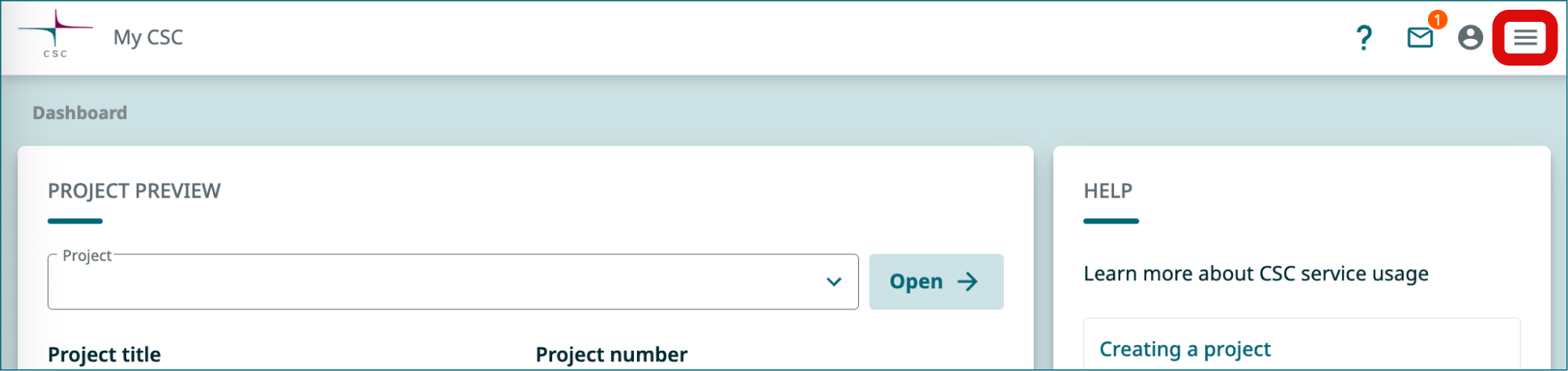
- Go to Projects page (left side menu or a hamburger menu at the top right corner).
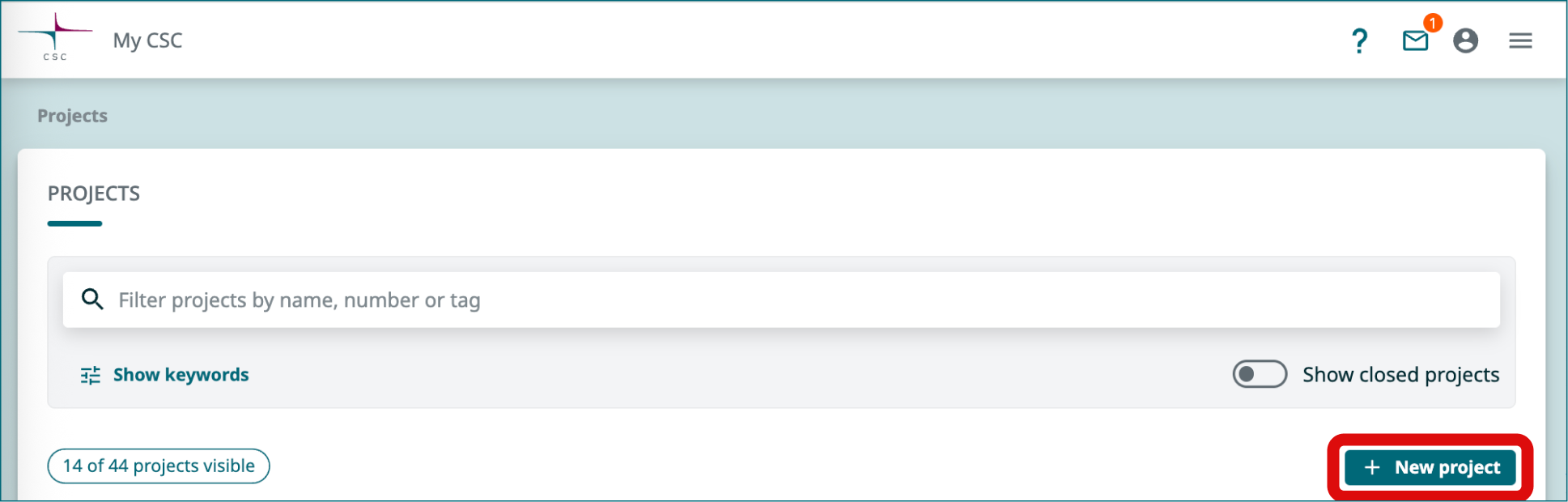
- On the top of the page choose New project.
2.1 Choose the project category
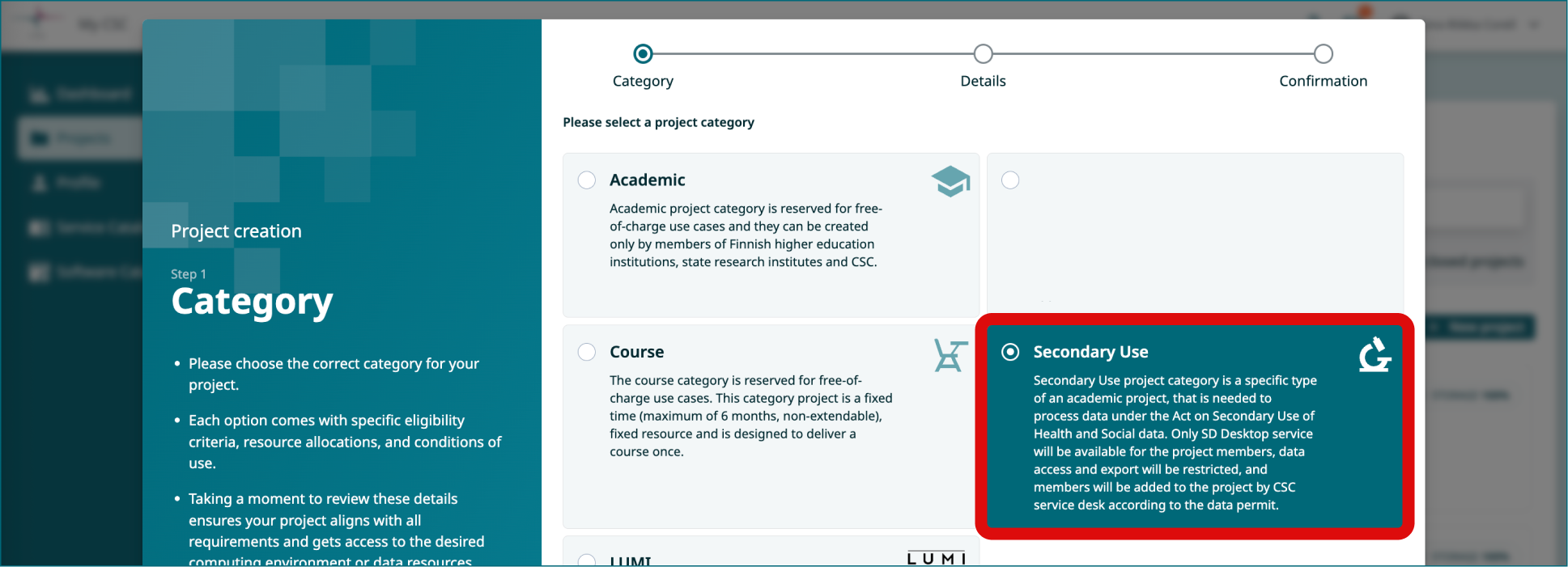
- In the new window choose the Project category to be Secondary use.
- Click Next.
2.2 Fill in the project details
- Fill in the project name and project description. You can edit these later if needed.
- Choose "Yes" for the field: We handle personal data in this project.
- Click Next.
2.3 Terms of Use and Data Processing Agreement
In the next view, under Terms of Use for the project:
-
Ensure you meet the Prerequisites and Responsibilities to be a CSC Project Manager. For research projects, the Project Manager should be an experienced researcher (e.g., postdoc, group leader, professor, or doctoral researcher employed by a research organization). Note for Students: If you are a student, please have your supervisor create the CSC project or contact CSC Service Desk (subject: sensitive data) for assistance. It is not possible to access SD Services with a student account.
-
Read and accept the General Terms of use for CSC's Services for Research. Note: this will include the CSC’s Personal Data Processing Agreement (DPA)
-
Click Submit.
-
Wait for your project is being created. When project is ready, you'll be redirected to project page.
3. Fill in the Description of Processing Activity (GDPR) form
-
Team manager
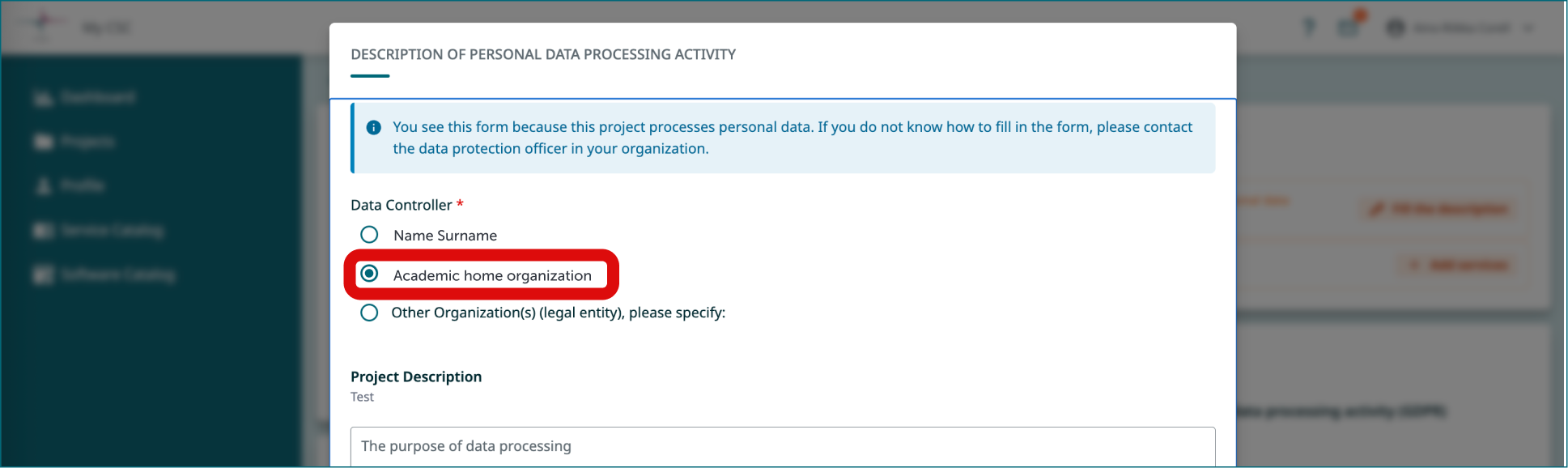
When you first access your project, you’ll be prompted to complete the Description of Processing Activity (GDPR) form as your project handles personal data. This form requires key details such as the types of data collected (e.g. sensitive personal data), how it is used and secured, and the data controller (usually your home organization). The form will be linked to your CSC project and guide CSC in managing the data. You can edit the document later if needed.
4. Contact CSC service desk
-
Team manager
- Send email to sensitivedata-support@csc.fi, subject: Sensitive Data, Secondary use.
- Write your project number to the email (e.g. project_1234567).
- Attach a copy of your data permit to the email.
- Write down a list of your research teams' email addresses. Please use same emails that they created the CSC-account with.
- Put your research team as cc.
5. CSC adds members to your project
- Please wait that Sensitive Data Support team adds your research team to your project
- Note! All team members must have a CSC account, so they can become project members.
6. CSC activates SD services for your project
- Please wait that Sensitive Data Support team activates SD services for your project.
- You will receive an email notification, when everything is ready.
7. Retrieve your project's Share ID from SD Connect
-
Team manager
- Login to SD Connect service.
- Copy your Share ID.
- Send the Share ID to the Sensitive Data support team via the support email you have opened.
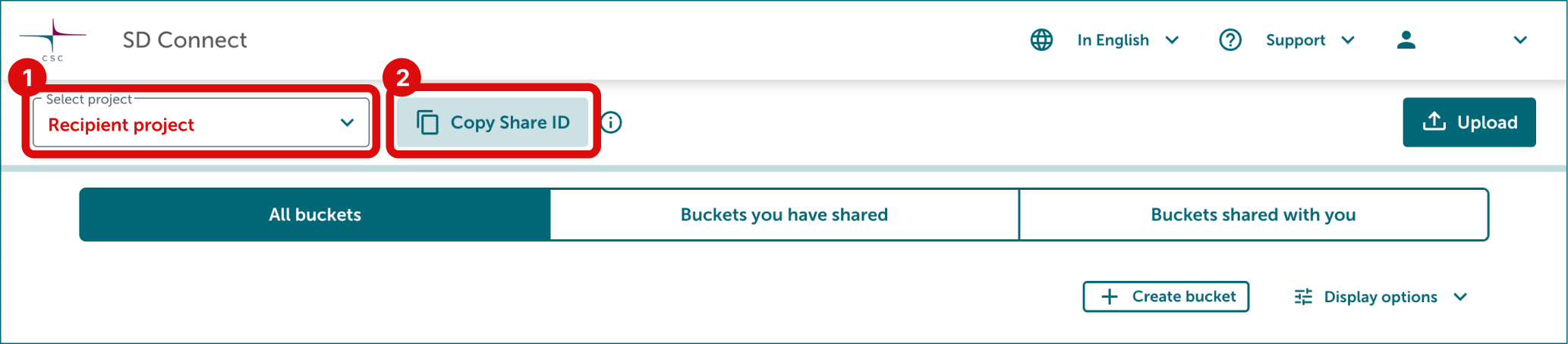
You can find the Share ID by selecting the correct CSC project in the top-left corner of SD Connect and clicking Copy Share ID next to the project number. A Share ID is a 32-character identifier, which will be used to share the register dataset for your project.
8. Project Lifetime, Billing Units, and Data Retention
-
Team manager
-
Team member
8.1 Default project lifetime
The default lifetime of a CSC project is one year, after which the project is automatically closed and all data is deleted.
8.2 When your project runs out of Billing Units
When a CSC project runs out of Billing Units, project members have 60 days to apply for more. If Billing Units balance remain negative after those 60 days, the project will be closed and all data is deleted.
To prevent this, the project manager should:
- Apply for more Billing Units via MyCSC. This can be also done by a project member.
- Extend the project’s lifetime via MyCSC. This can be done only be the project manager. Note! Project lifetime can't be extended, if your data permit is also expiring.
When your project is running low on Billing Units or nearing expiration, email notifications are sent from MyCSC. Please keep your contact details up to date.
8.3 Closing project
Once your research is complete, the project manager can close CSC project via MyCSC. The project will also close automatically, when your data permit expires.
-
After your project is closed
- Access to SD Connect and SD Desktop services will be disabled.
- All data stored in SD Connect or SD Desktop, including files, virtual desktops, and volumes, will be permanently deleted 90 days after the project closure/ expiration.
- Once data is deleted in line with CSC's data retention policy, it cannot be restored or recovered.
9. Plan resources consumption and access data
-
Team manager
-
Team member
9.1 Resource consumption
Now that your CSC project is ready, you can start planning how many resources (Billing Units) and how much storage (quota) your project will need for the next six months. You can learn more in the next section.
9.2 Login to the services
After your team has a resource consumption plan, you can start using the services (links to related user guides):
SD Connect:
SD Desktop:
9.3 Access and review data
CSC shares a bucket for your project in SD Connect with Read-only access. This bucket will contain the data from Findata or other registers after it has been transferred to CSC. The bucket will be visible in SD Connect, but you can only access the data on SD Desktop's virtual desktops via the Data Gateway application.
-
Review the data for errors and omissions
As Findata states in their data permits, the permit holder must check that the disclosed data corresponds with the extraction description as soon as possible after receiving access to the disclosed data. Suspected errors must be reported to the data controller within 3 months of the permit holder having obtained access to the disclosed data. The 3-month period to report errors starts already, when Findata transfers the data to CSC, regardless of whether the permit holder has a virtual desktop ready to access the data or not. Thus, we recommend starting the preparations for the data access early on. The data can be shared with your project once the data is transferred to CSC and your project is ready.