LUMI-Q VLQ
The LUMI-Q VLQ is a superconducting star IQM quantum computer deployed as a joint collaboration between EuroHPC JU and the LUMI-Q Consortium hosted by IT4Innovation in Czechia. To serve all involved parties, the access mechanism differs from standard CSC quantum computers access method. Below we provide an overview as well as particular steps to be taken.
Specification
| Property | Value |
|---|---|
| Qubits | 24 |
| Operator | IT4Innovation |
| Manufacturer | IQM |
| Qubit technology | Superconducting |
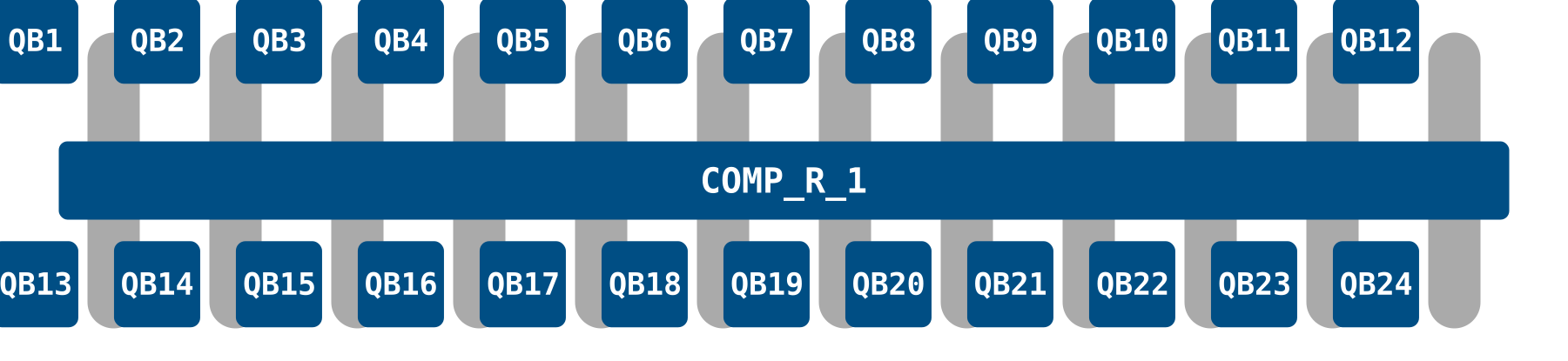
| Topology | Star (one-to-all connectivity) |
| Native gates | Two-qubit Controlled-Z (CZ) and one-qubit Phased RX (PRX), MOVE (For more info on the move operation see IQM academy.) |
| Known hardware issues | None |
| Terms of use | IT4I VLQ AuP. Communicated via email by IT4I |
Runtime identifiers
Due to the differing access method of VLQ you do not need to (and should not) specify runtime identifiers when running quantum jobs on VLQ from LUMI.
Topology
VLQ's qubits are connected to a central computational resonator providing one-to-all connectivity.
Topology mapping (Click to show)
Access
If you do not yet have a VLQ project see the Access page for info on applying for one. Once the project with VLQ allocation has been created you (PI) will receive project id and resource id (string). After this follow the instructions here to gain access to the VLQ allocation.
Configure the environment
On LUMI there exists a preconfigured environment for using VLQ. It can be accessed by loading the following module.
VLQ also provides API access so it can be accessed outside of LUMI. Locally it is recommended to follow the instructions in IT4I VLQ docs.
Get your access token
For VLQ you need to get your own access token using MyAccessID. This can be done via the below Python script.
For jobs submitted through the Slurm batch scheduler one needs to save an offline scoped token to a file from which it can be read at run time. You can run this either as an interactive job on LUMI before submitting your batch job or locally on your machine and transfer the token to LUMI yourself.
from pathlib import Path
from py4lexis.session import LexisSession

TOKEN_FILE = Path("offline_token")

lexis_session = LexisSession(offline_access=True)
print("Generating new token.")
TOKEN_FILE.write_text(lexis_session.get_refresh_token())
TOKEN_FILE.chmod(0o600)
This will attempt to open a browser window where you are prompted to login. If no window opens copy paste the printed URL to a browser.
To use the offline token to get an access token without going through the browser login include the following in your Python script
from pathlib import Path
from py4lexis.session import LexisSessionToken

TOKEN_FILE = Path("offline_token")

session = LexisSessionToken(
    refresh_token=TOKEN_FILE.read_text().strip(),
    reraise_exceptions=True,
    suppress_welcome=True,
)

TOKEN_FILE.write_text(session.get_refresh_token())
TOKEN_FILE.chmod(0o600)

token=session.get_access_token()
The quantum job Python script can then be run using e.g. the below batch script:
Below is an example batch script you can use for VLQ.
#!/bin/bash

#SBATCH --job-name=quantumjob   # Job name
#SBATCH --account=project_<id>  # Project for billing (slurm_job_account)
#SBATCH --partition=standard   # Partition (queue) name
#SBATCH --ntasks=1              # One task (process)
#SBATCH --mem-per-cpu=2G       # memory allocation
#SBATCH --cpus-per-task=1     # Number of cores (threads)
#SBATCH --time=00:05:00         # Run time (hh:mm:ss)

module load Local-quantum
module load lumi-q-qiskit/vlq

python your_python_script.py
For interactive jobs you can use the method documented in the IT4I VLQ docs.
# Import packages
from py4lexis.session import LexisSession

# Authentication
lexis_session = LexisSession()
token = lexis_session.get_access_token()
This will attempt to open a browser window where you are prompted to login. If no window opens copy paste the printed URL to a browser.
Running on VLQ
See IT4I VLQ docs for running quantum jobs.
Further Reading
- IT4I VLQ docs for running quantum jobs
- IT4I VLQ docs
- LUMI Documentation
- Qiskit adapter for IQM devices
- Cirq adapter for IQM devices