Table of contents of user guide
How to transfer your data to another project with SD Connect
Use case
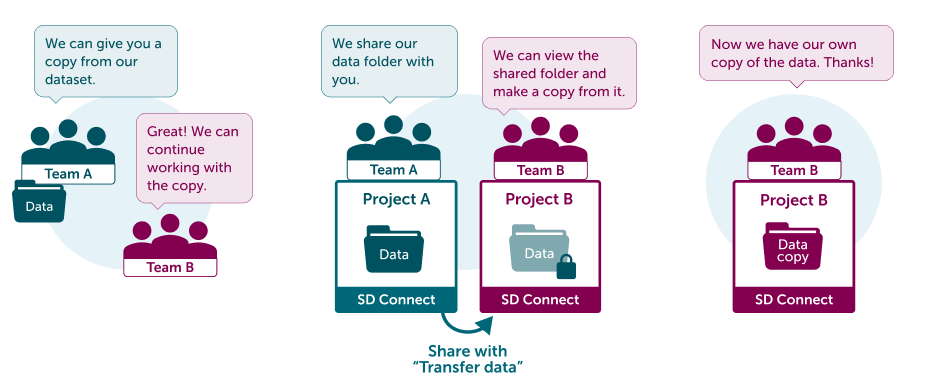
You (Team A) have datasets that other team (Team B) needs access to. They wish to view your data and analyse it in their own environment. You are willing to give them a copy of your dataset.
Solution
In this case you can share your data to Team B with Transfer data -permission. This allows Team B members to view your data, copy it and download the copy for themselves. Team B can have their own copy for analysis without affecting your original dataset.
Step by step tutorial
Both teams should have their own CSC project and SD Connect activated. If you don't have one yet, please follow instructions from Start here and return to this tutorial after you have set up the CSC project.
-
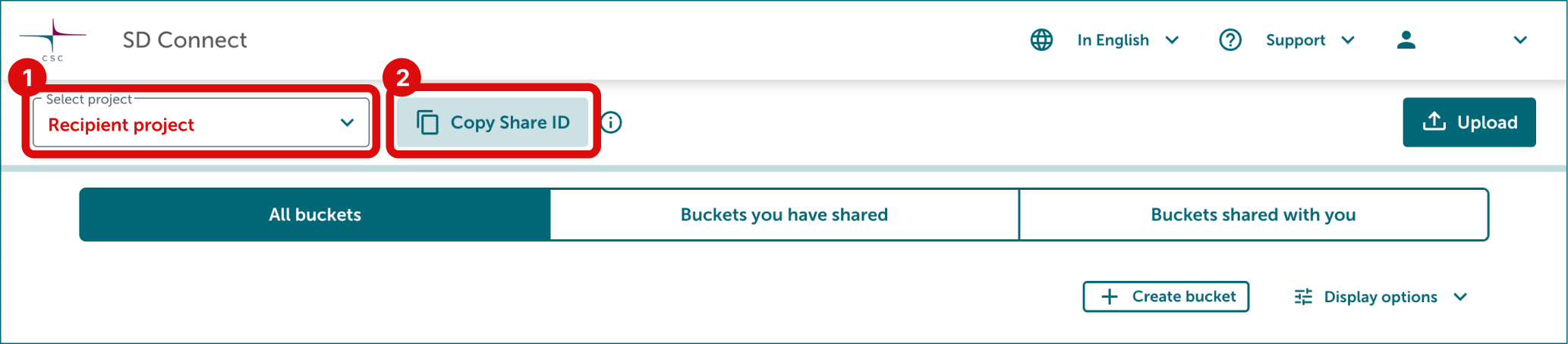
Ask from recipient (Team B in this use case) for their project's Share ID. They can find it in the SD Connect user interface by selecting the correct CSC project from the top-left corner and clicking Copy Share ID button next to the project number. Ask them to send the Share ID to you by email.
-
Log in to SD Connect.
-
Upload your data to a bucket: See upload instructions.
-
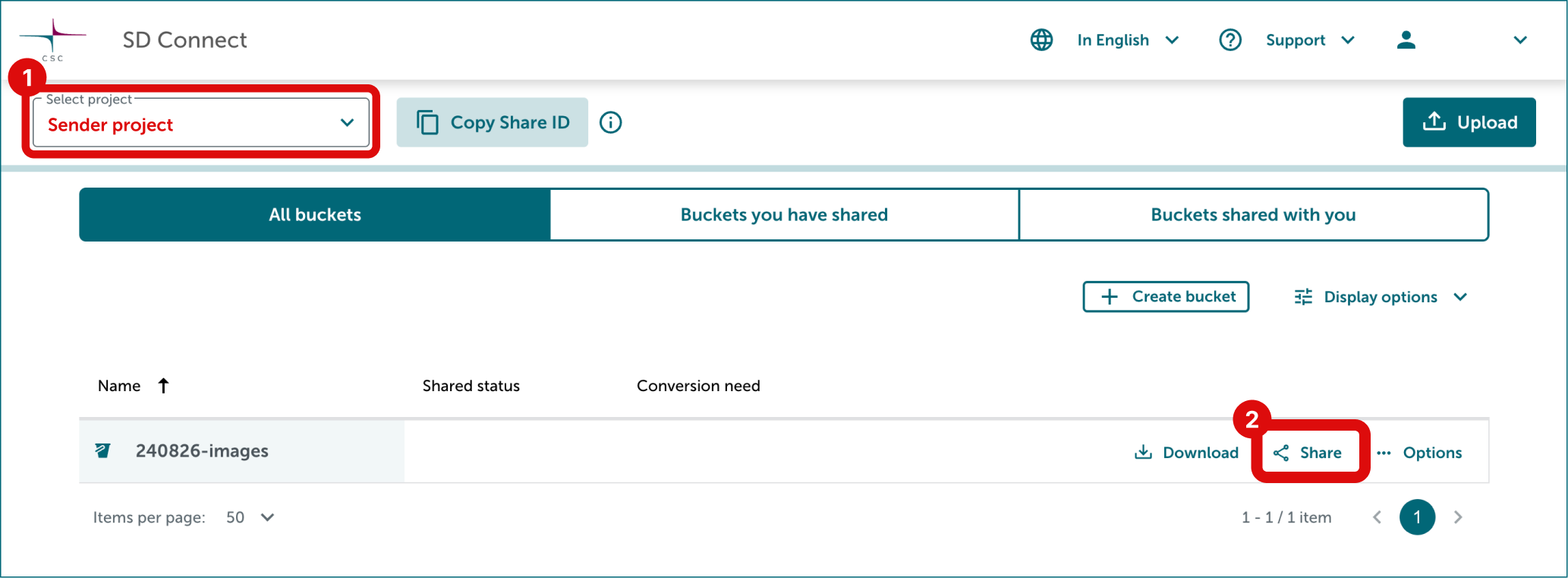
Click Share button on the right side of the bucket you want to share.
-
Add the Project B’s Share ID to the field. Select sharing permission Transfer data. Finally click Share.
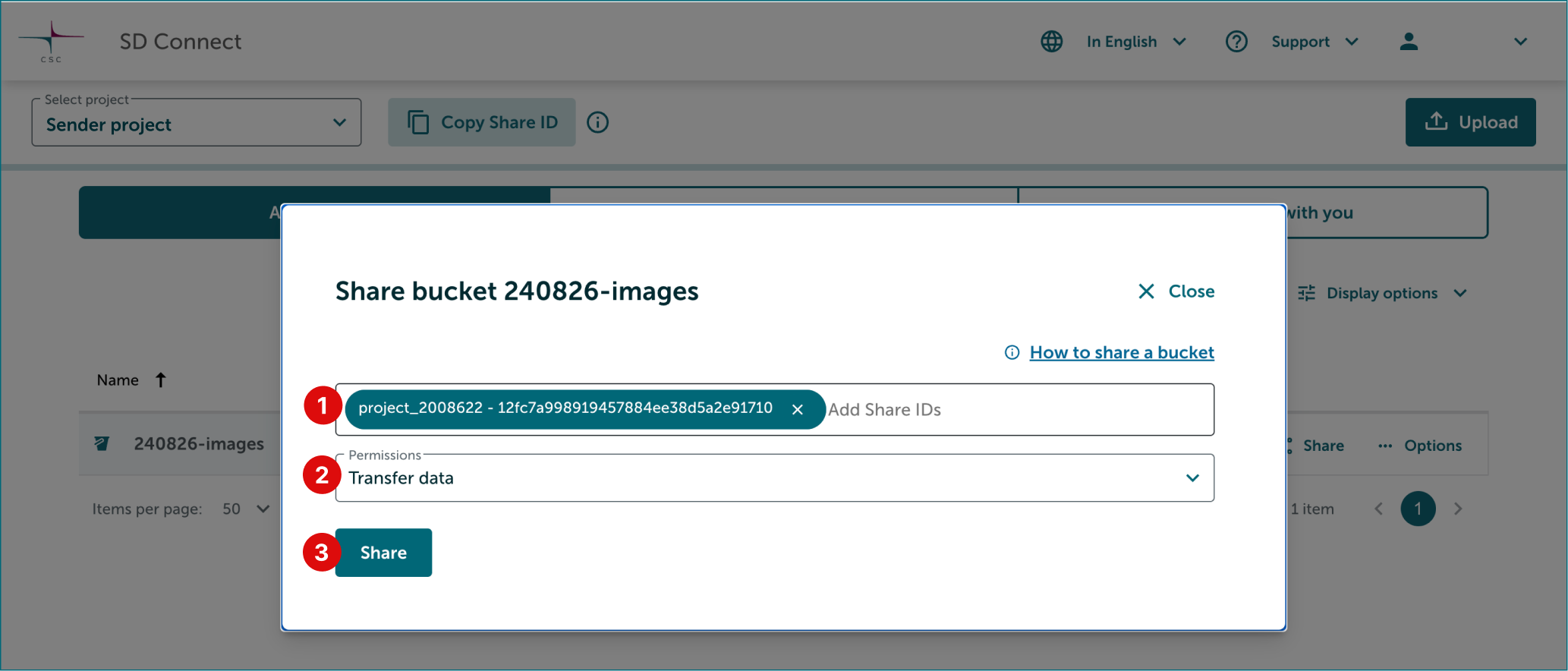
Now all the content of the bucket is visible to Project B. All project members in Project B can copy, download, and decrypt the content of the bucket via SD Connect. They can also access it via SD Desktop for analysis. However, they can not modify your original bucket.