SD Connect bucket name Conversion tool
On this page:
- 1.Download and install SD Connect Conversion tool
- 2. Using SD Connect Conversion tool
- 2.1 Login to Conversion tool
- 2.2 Select project
- 2.3 Add project's temporary API key
- 2.4 Select buckets to convert
- 2.5 During conversion
- 2.6 If conversion is interrupted
- 2.7 Finish conversion
This guide helps you to install and use SD Connect Conversion tool to convert bucket names in a compatible format.
In SD Connect UI you will see buckets marked with Urgent label. These buckets seem empty because bucket names are incompatible with new version of SD Connect and they must be converted to regain access to the files. We recommend that you don’t upload files to this bucket to ensure smooth conversion process.
1. Download and install SD Connect Conversion tool
Installation guide for macOS
-
Download the SD Connect Conversion Tool for Mac.
-
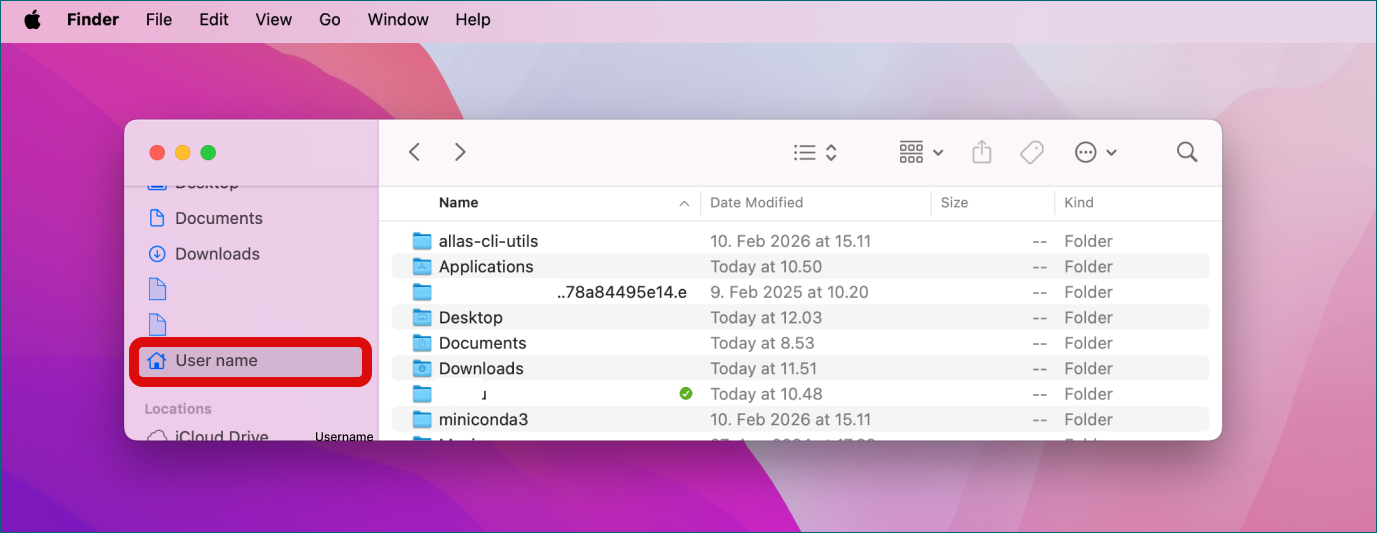
Open a new Finder window. In Finder window open your Home folder (marked with Home icon) from left sidebar. (If Home folder is not visible, click Finder at top left and select Settings from dropdown menu. A new window opens. In this Settings window select Sidebar tab and then select Home folder to make it visible in the sidebar.)
-
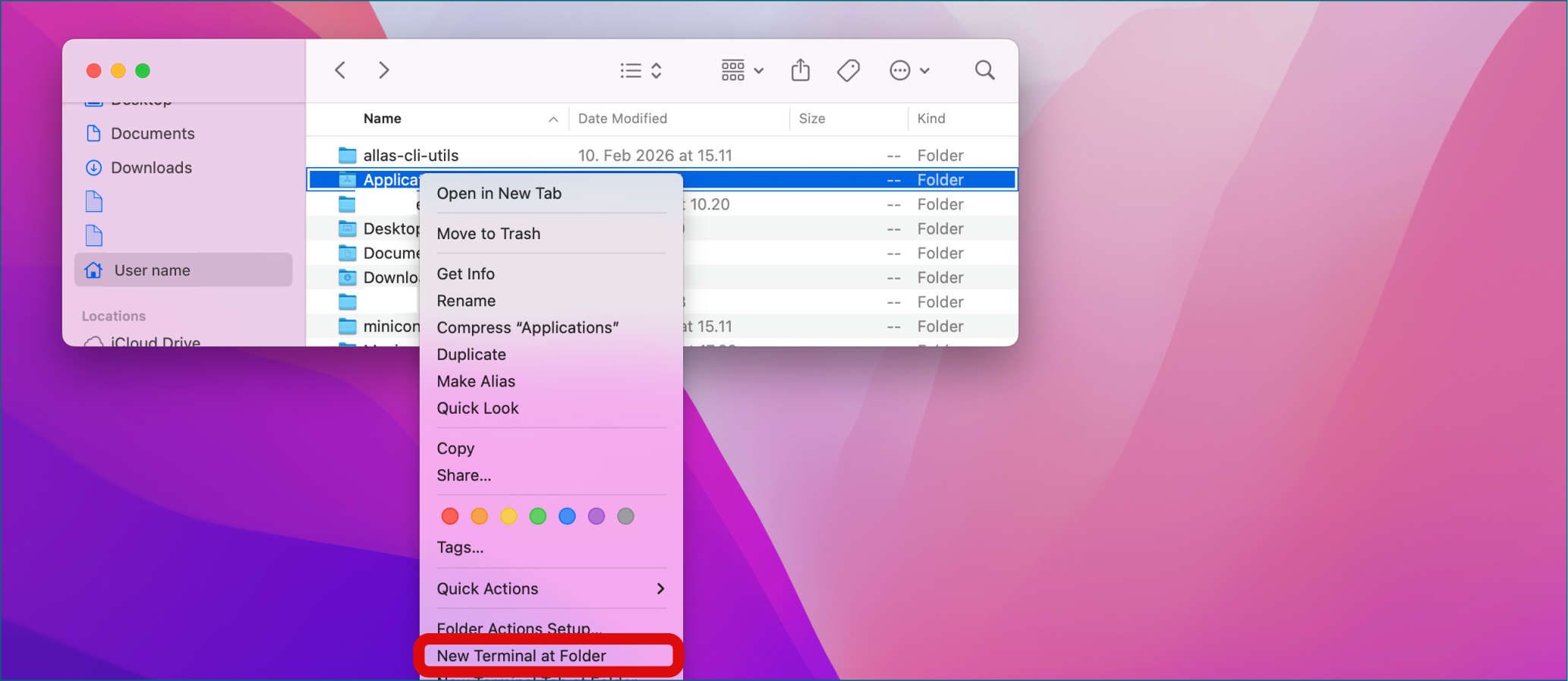
Right-click Applications folder. Select New Terminal at Folder.
-
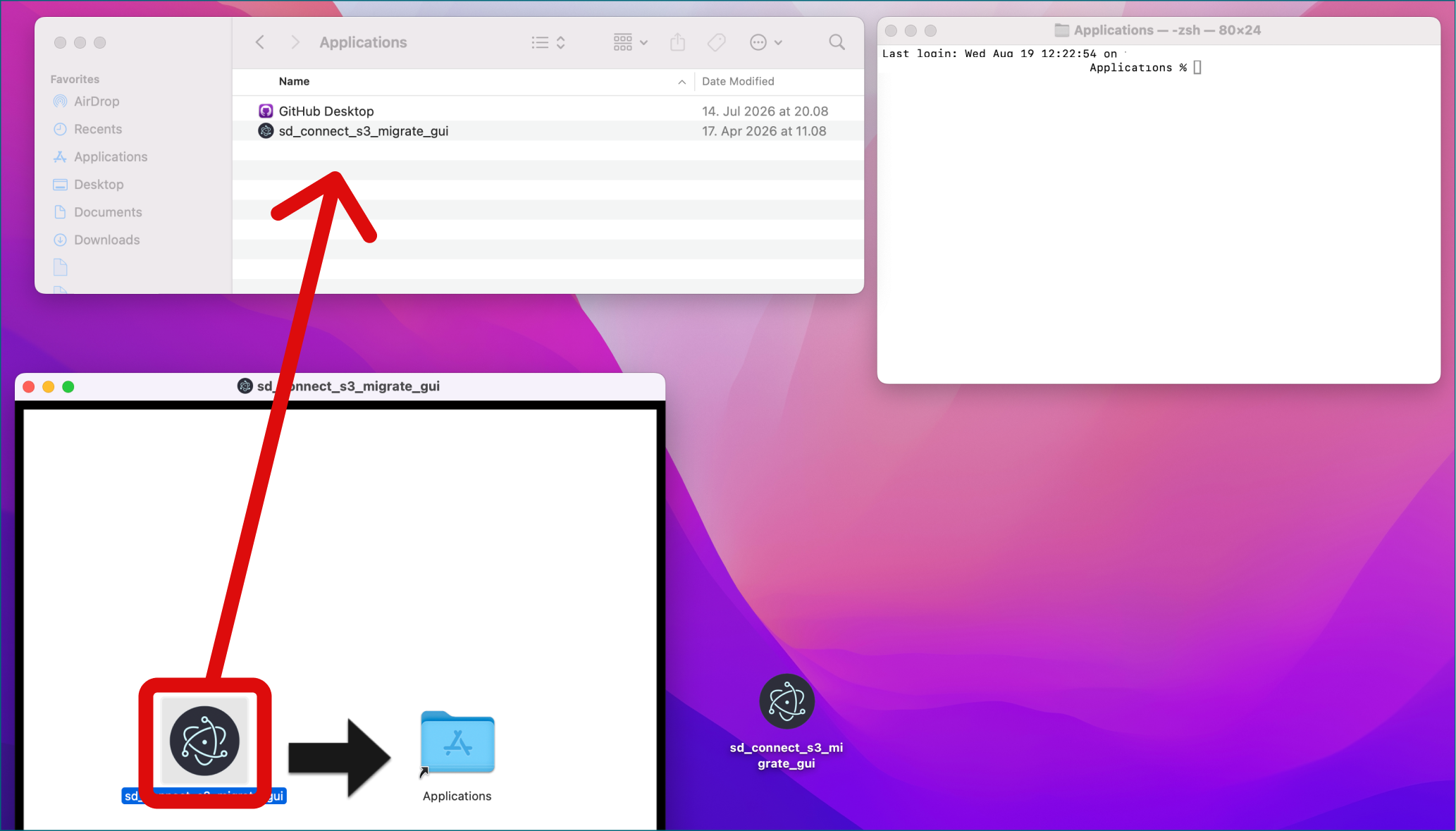
Double-click the downloaded file. A new window named sd_connect_s3_migrate_gui will open. Drag and drop sd_connect_s3_migrate_gui file (black icon) to Applications folder.
-
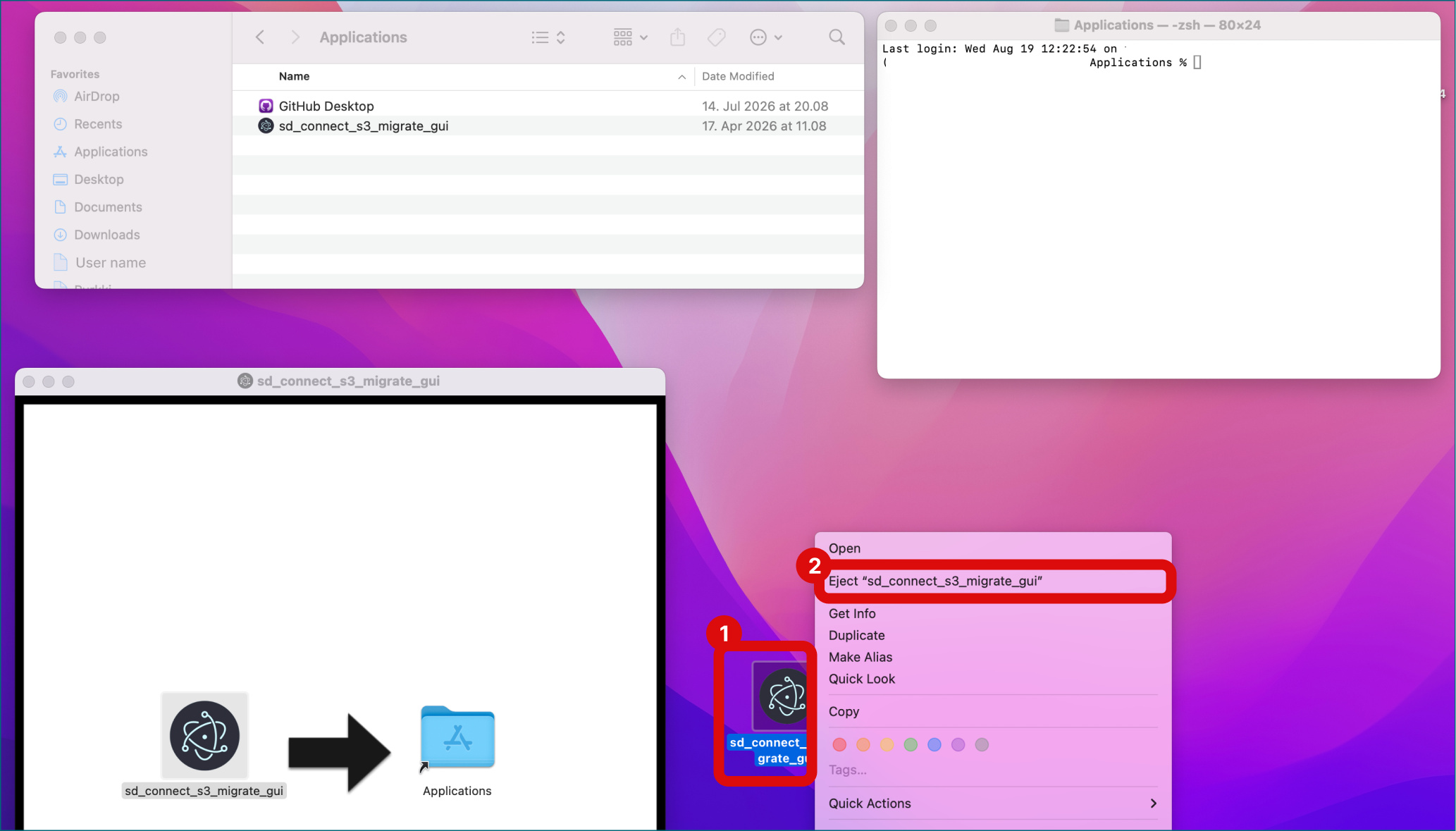
On your desktop, find the icon named SD_Connect_s3_migrate_gui. Right-click it and select Eject SD_Connect_s3_migrate_gui.
-
Copy and paste command below into the terminal and press Enter:
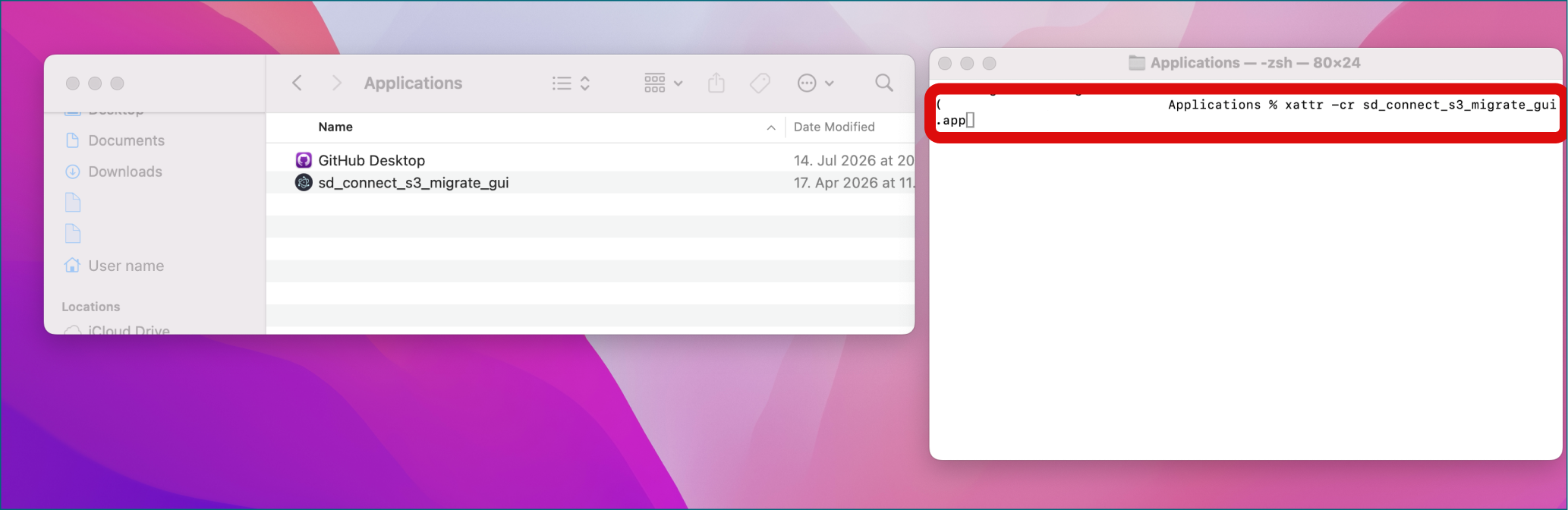
-
Copy and paste command below into the terminal and press Enter:
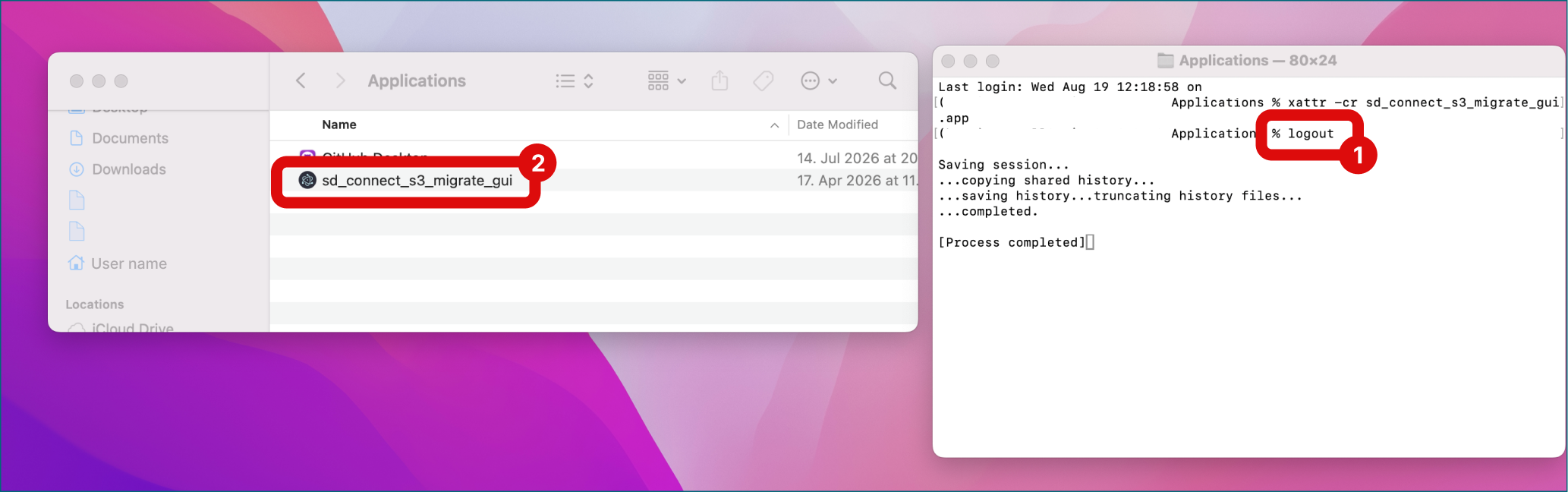
-
Double-click SD Connect Conversion Tool icon in Applications folder to start the application.
Installation guide for Linux
-
Download the SD Connect Conversion Tool for Linux. Please note that the tool is supported only on Ubuntu 22.04 and later versions.
-
GUI fails to start due to a sandbox permission error. The GUI uses Chromium internally. On Linux, Chromium normally starts with a security feature called the sandbox enabled. You do not need to enable this yourself. On some Linux systems, the GUI may fail to start because Chromium does not have the permissions required to initialize the sandbox. If you encounter this error, there are two possible solutions: 2.1 Recommended: Correct the ownership and permissions of the required sandbox file. This requires sudo access. Instructions are provided below. If you do not have sudo access: The GUI can be started with --no-sandbox. 2.2 --no-sandbox disables Chromium's sandboxing protections, so this workaround should only be used in a trusted environment.
Installation guide for Windows
-
Download the SD Connect Conversion Tool for Windows
-
Open your Downloads folder and extract the folder you just downloaded.
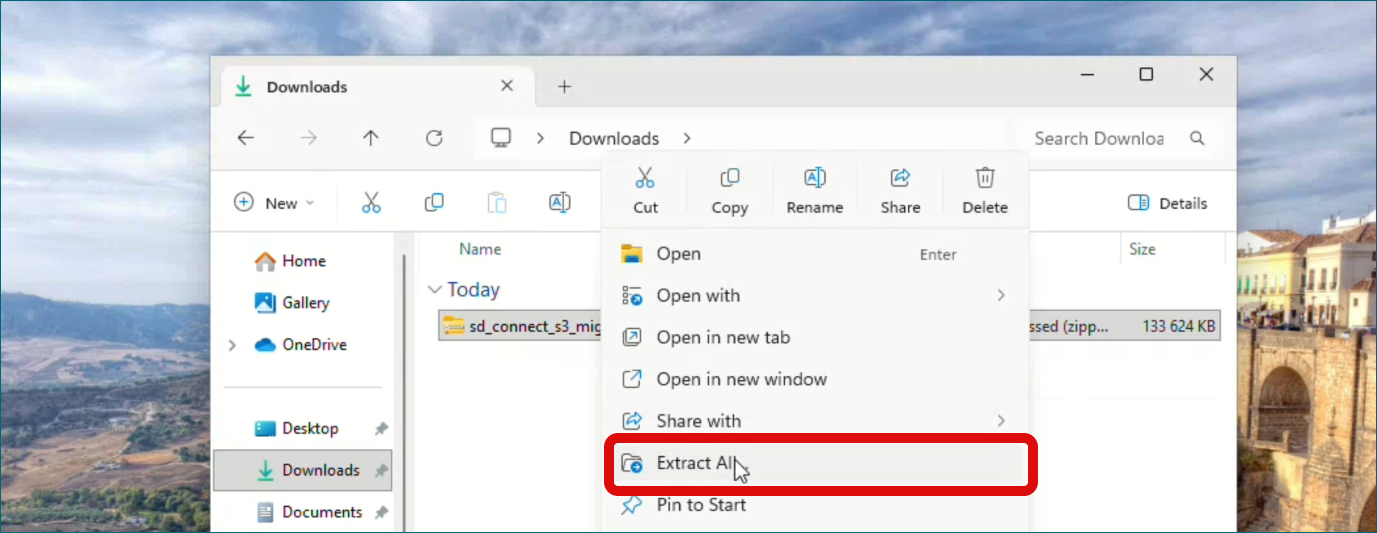
-
Drag the extracted folder to your Desktop.
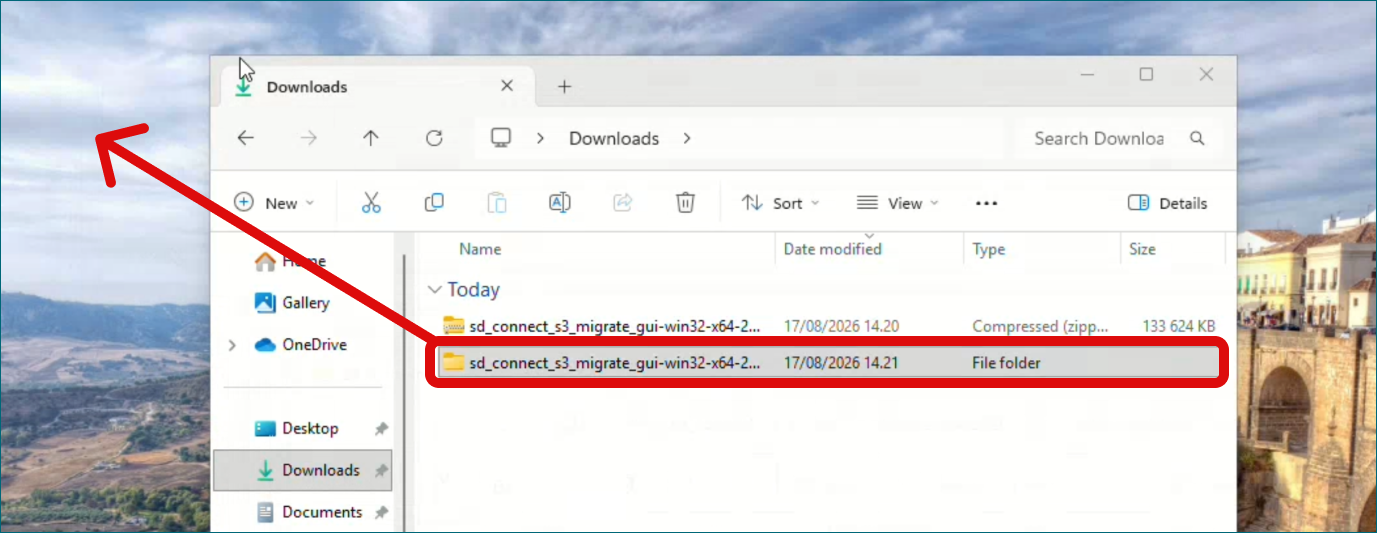
-
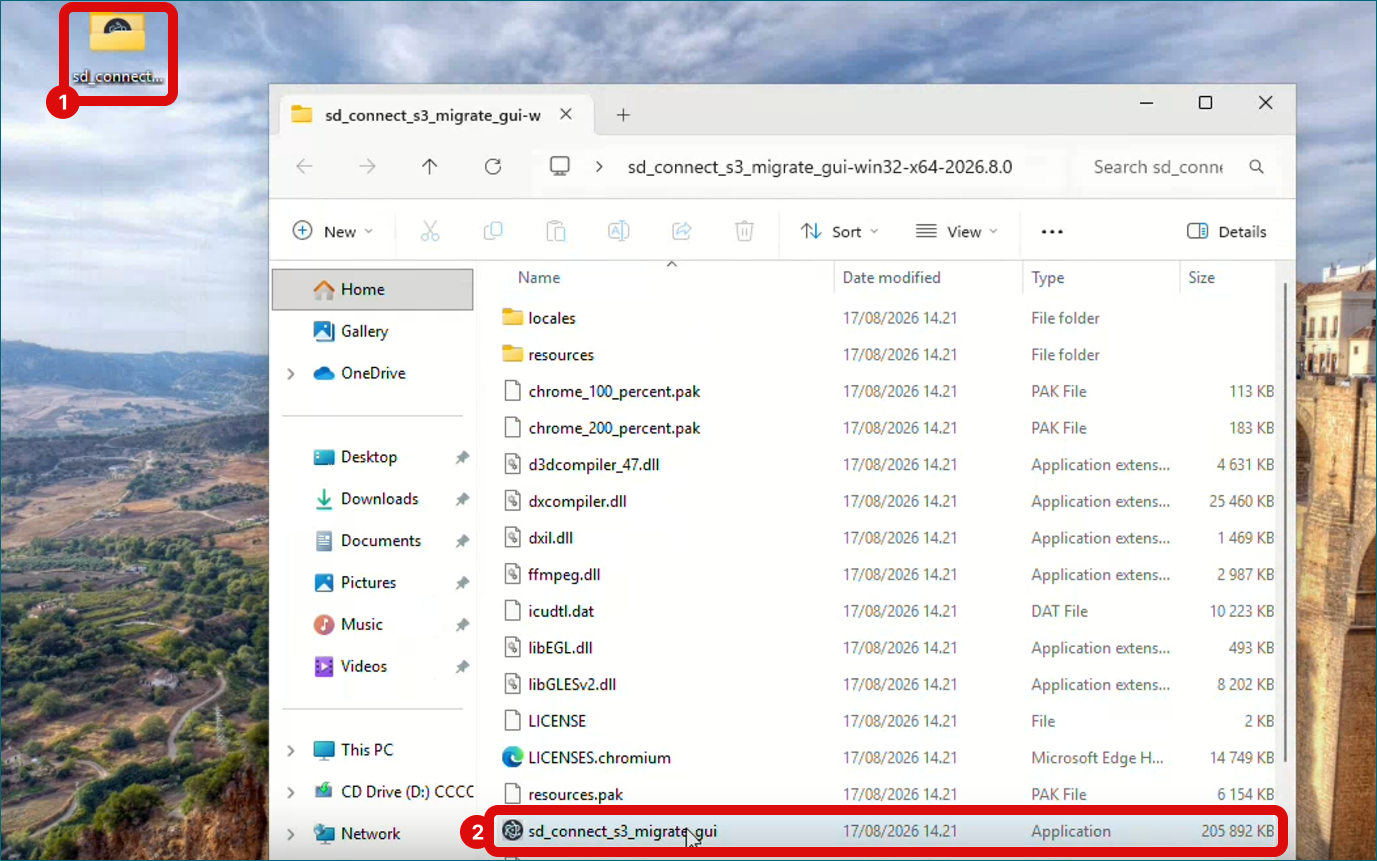
Open the folder and locate file sd_connect_s3_migrate_gui.exe. Double-click the file.
-
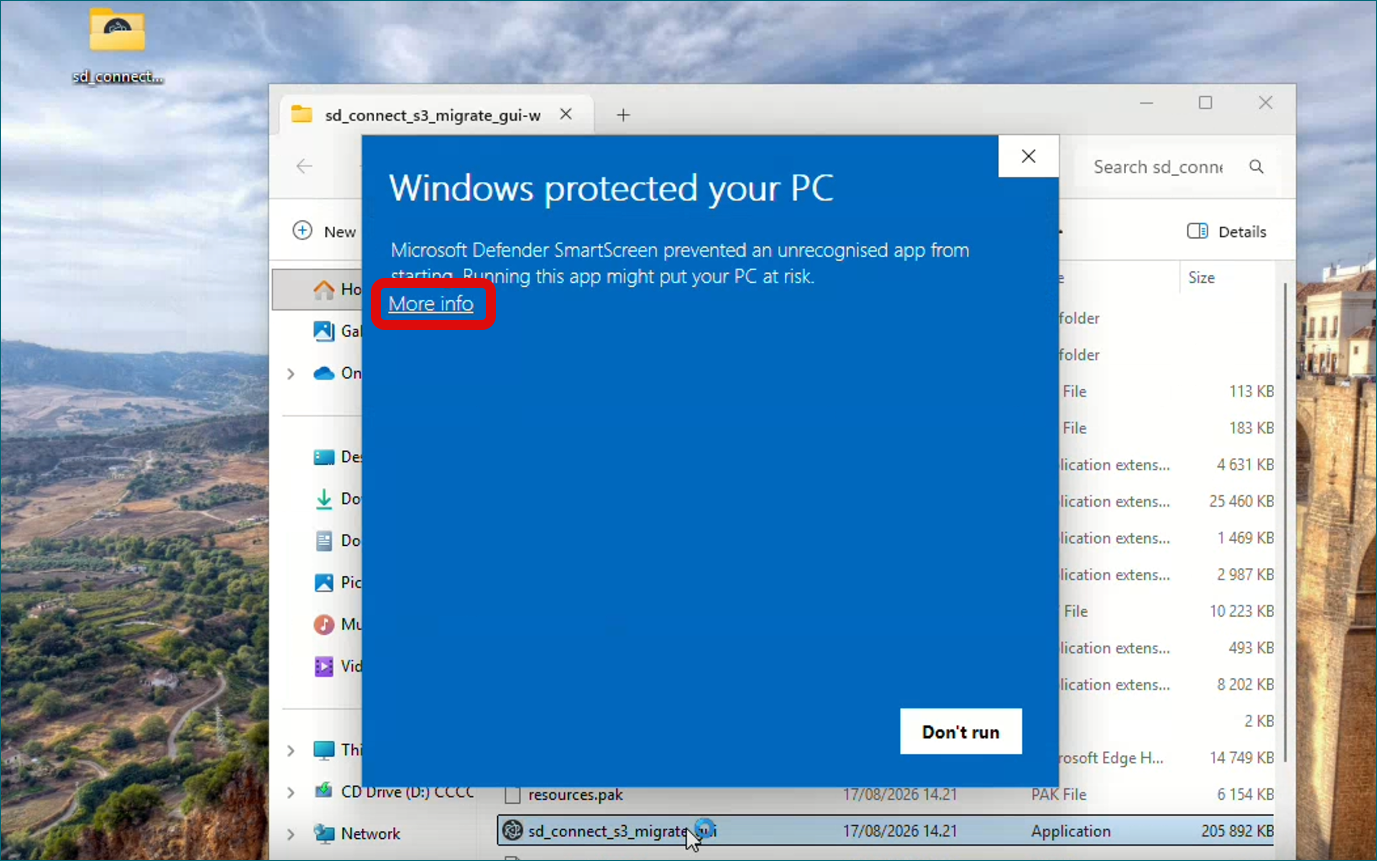
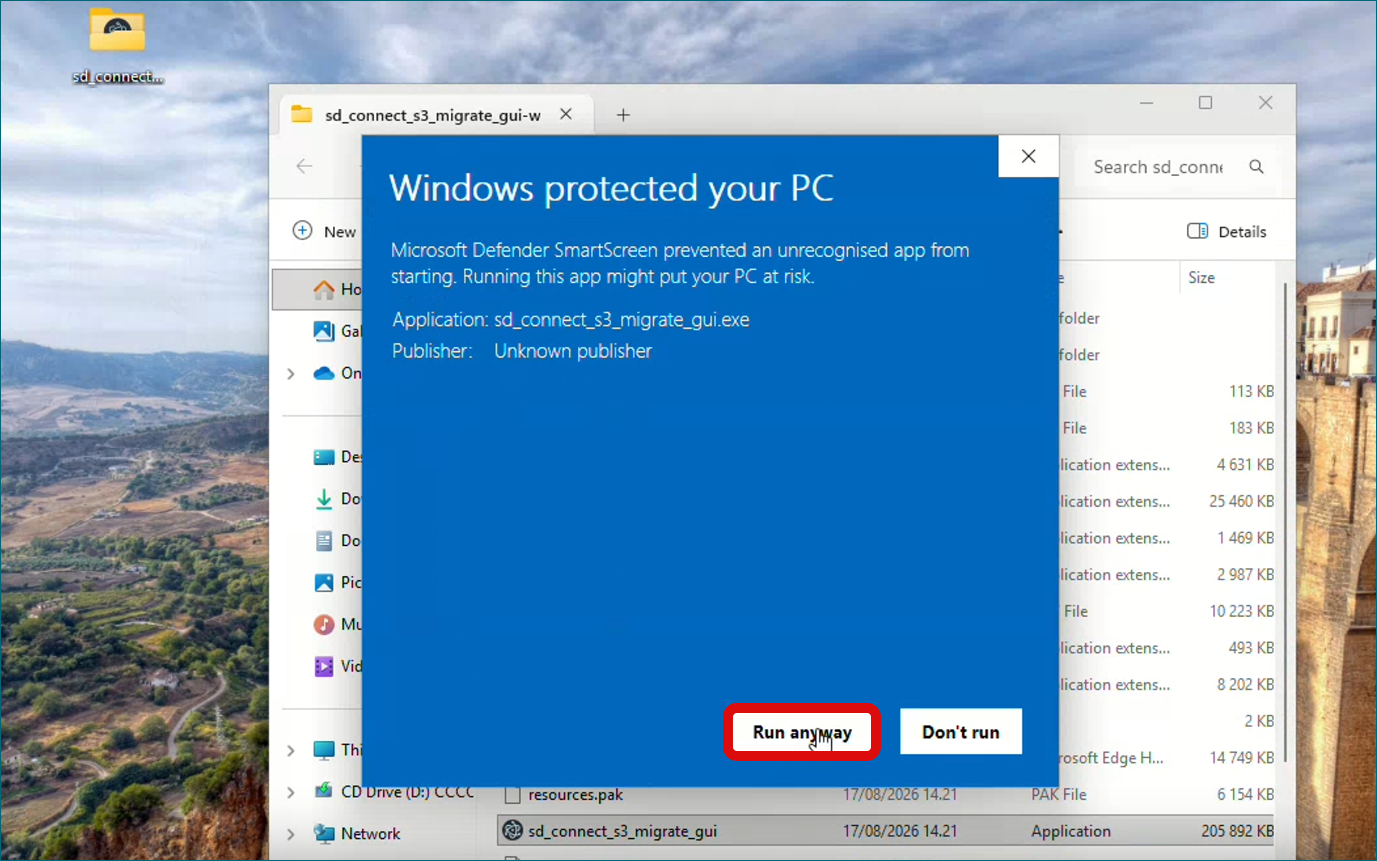
A new window Windows protected your PC opens. In this window, click More info, then click Run anyway button. Conversion tool starts.
Download the application for other operating systems
The available versions of SD Connect S3 Migrate can be found on the GitHub Releases page.
2. Using SD Connect Conversion tool
2.1 Login to Conversion tool
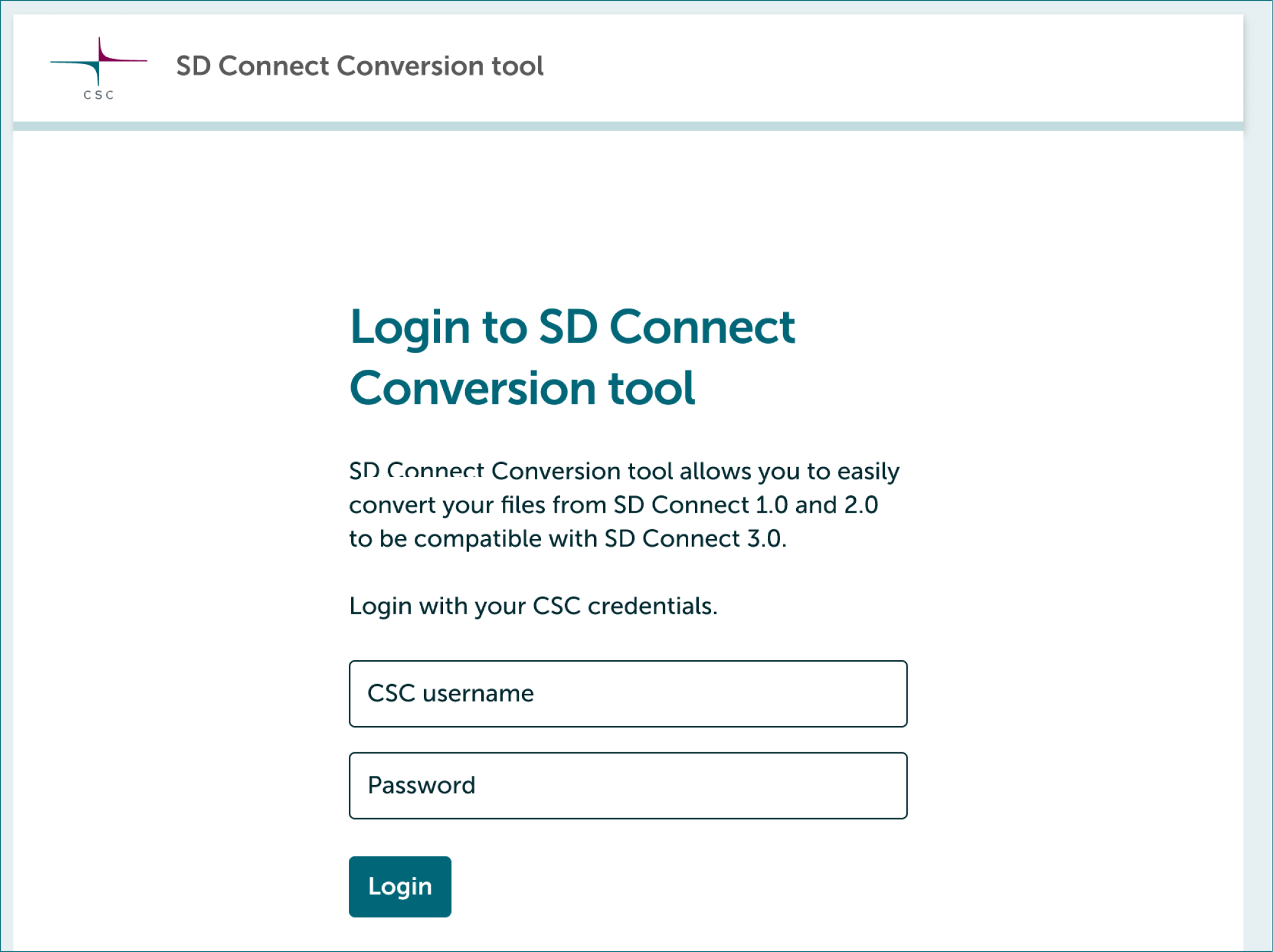
- Launch SD Connect Conversion tool and login with your CSC credentials.
2.2 Select project
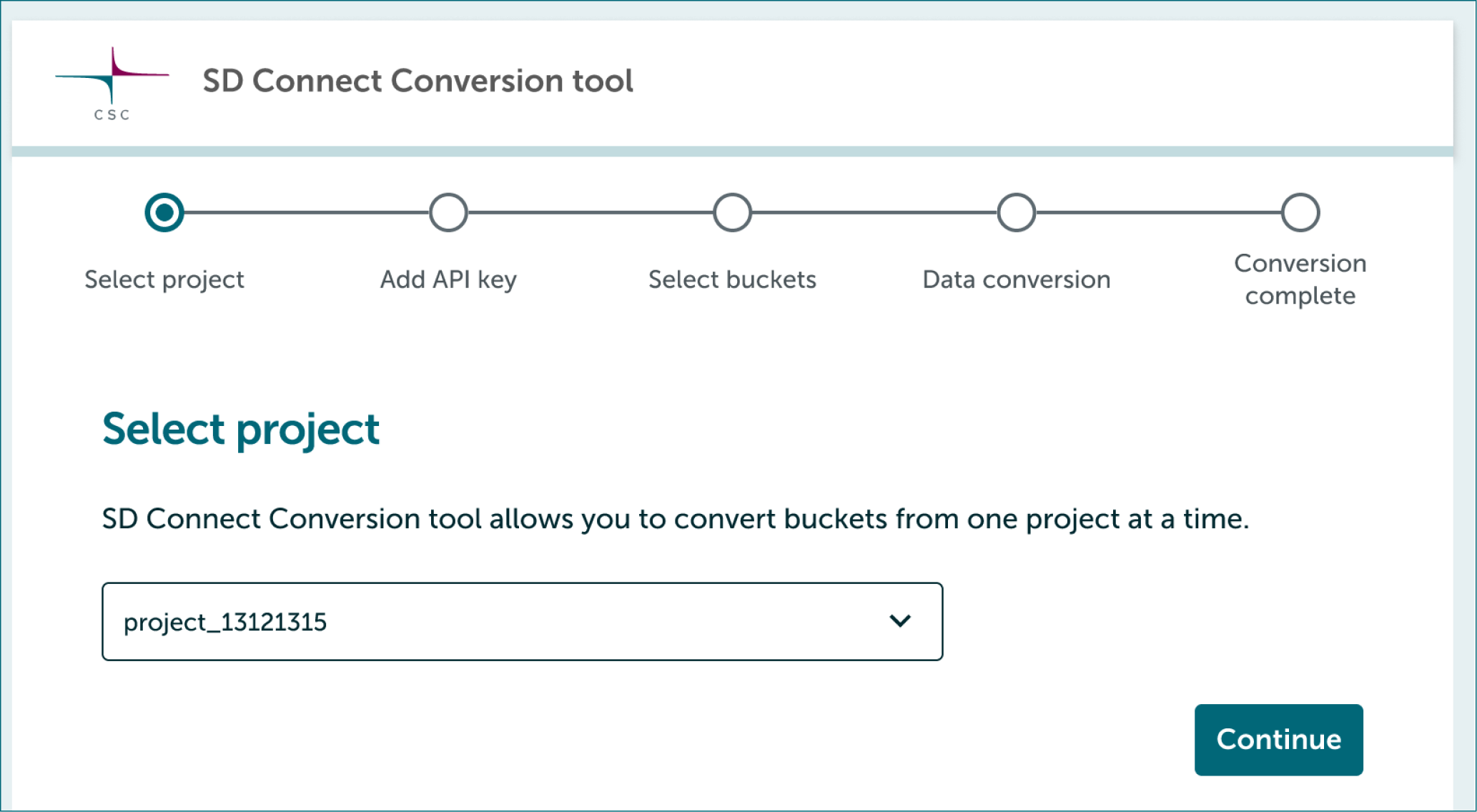
- Conversion tool allows you to convert buckets from one project at a time.
- Select first project you will convert and click Continue.
2.3 Add project's temporary API key
-
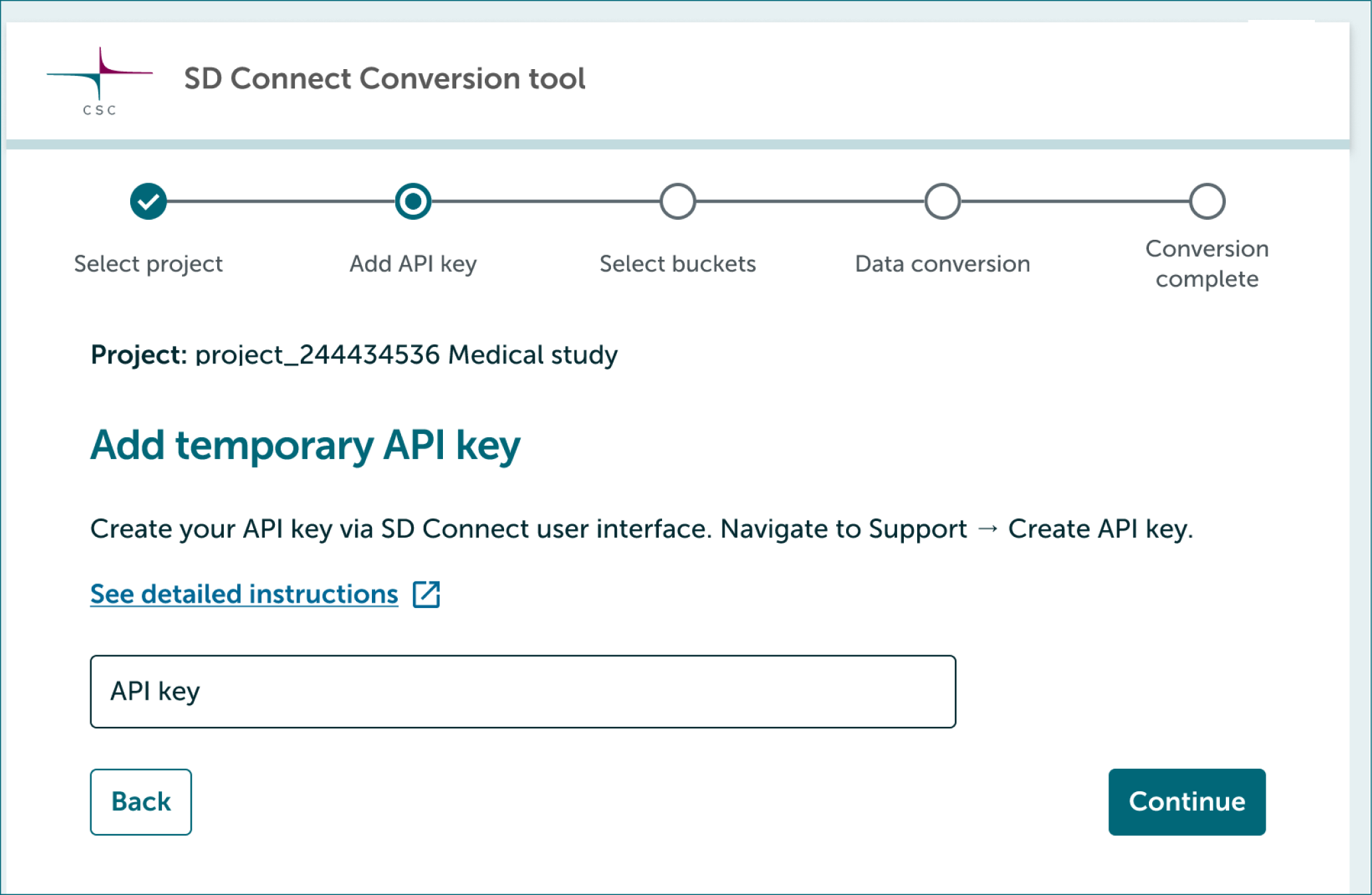
Next Conversion tool will ask to add project's temporary API key. Follow instructions below.
- Log in to SD Connect.
- Select project you want to convert from dropdown.
-
In the top right corner of the web interface, click on Support, then select Create API Token from the dropdown menu.

-
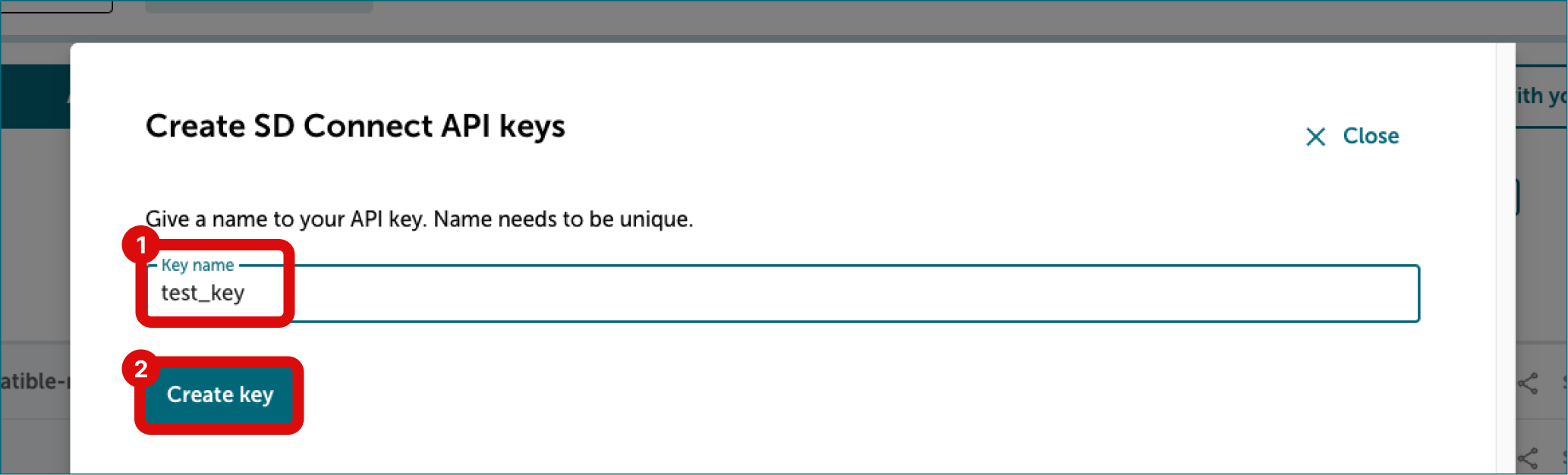
In the new dialog, enter a name for your API key. Avoid using special characters in the name. Click Create key.
-
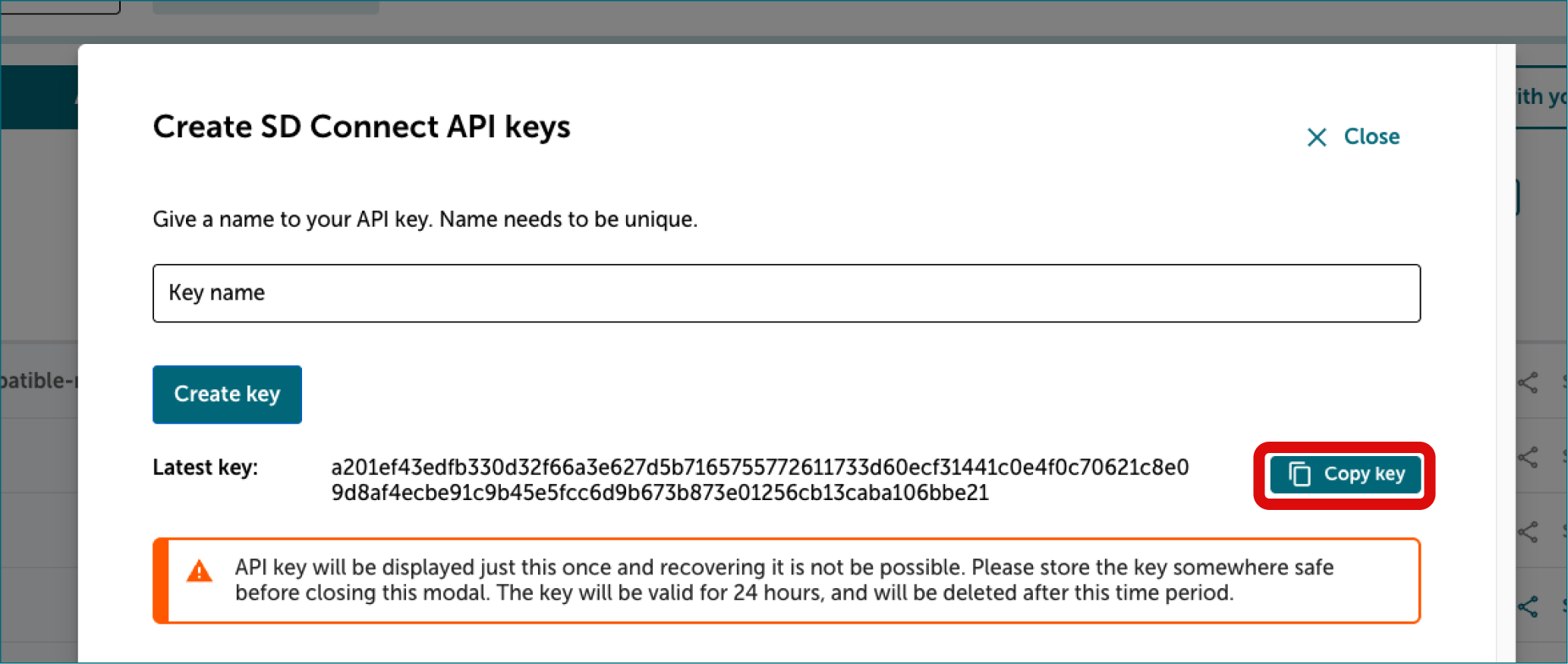
The API key will be displayed only once. Once you see the key, copy it by clicking button on the right side of the key.
-
Paste API key to the field in Conversion tool. The token will be valid for 7 days and will be automatically deleted after this period. If your conversion takes longer than 7 days you need to create a new API key.
2.4 Select buckets to convert
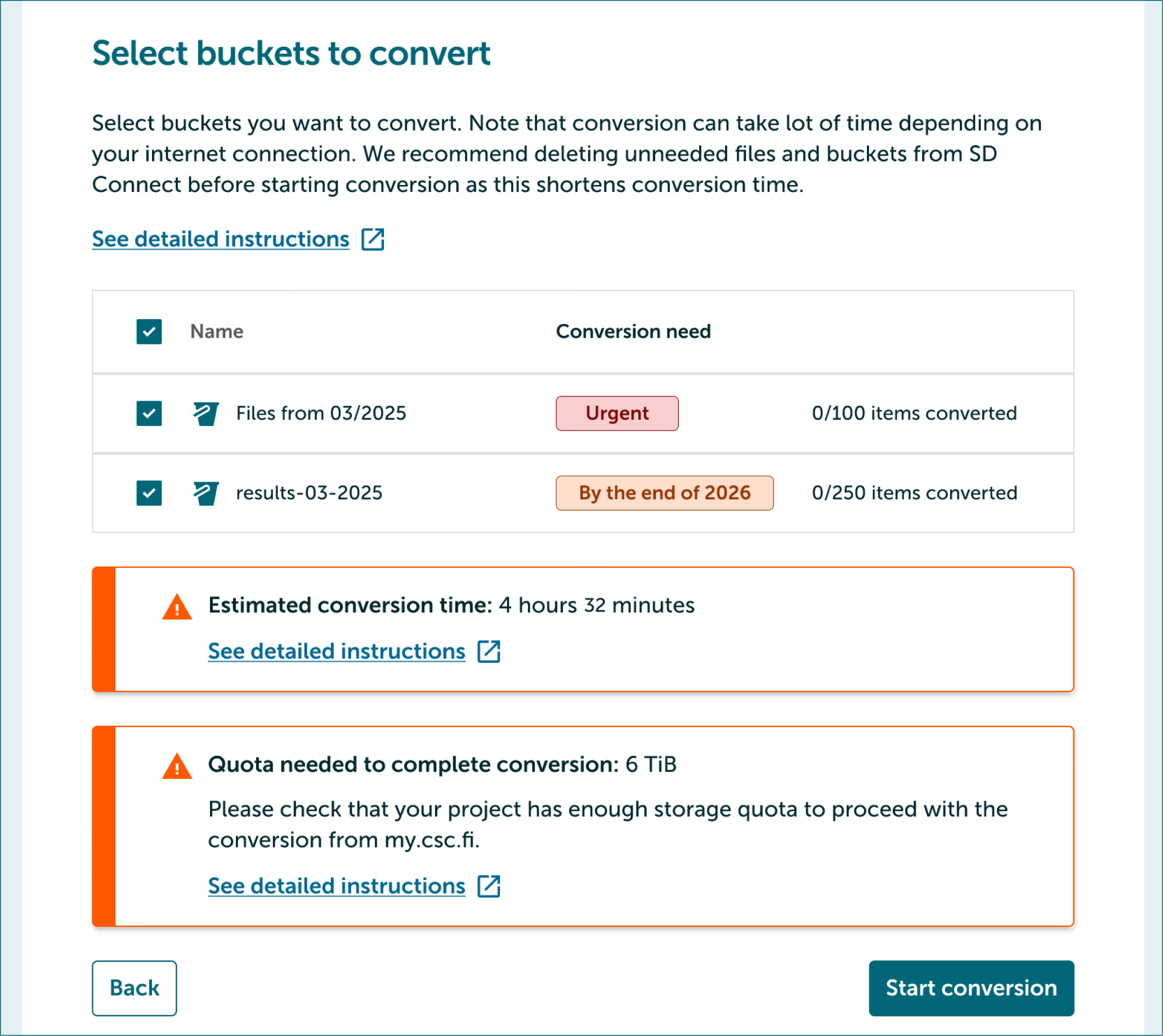
- Next select buckets you want to convert by clicking checkboxes on the left side of bucket names.
- If the estimated conversion time is very long we recommend using command-line version of the conversion tool.
2.5 During conversion
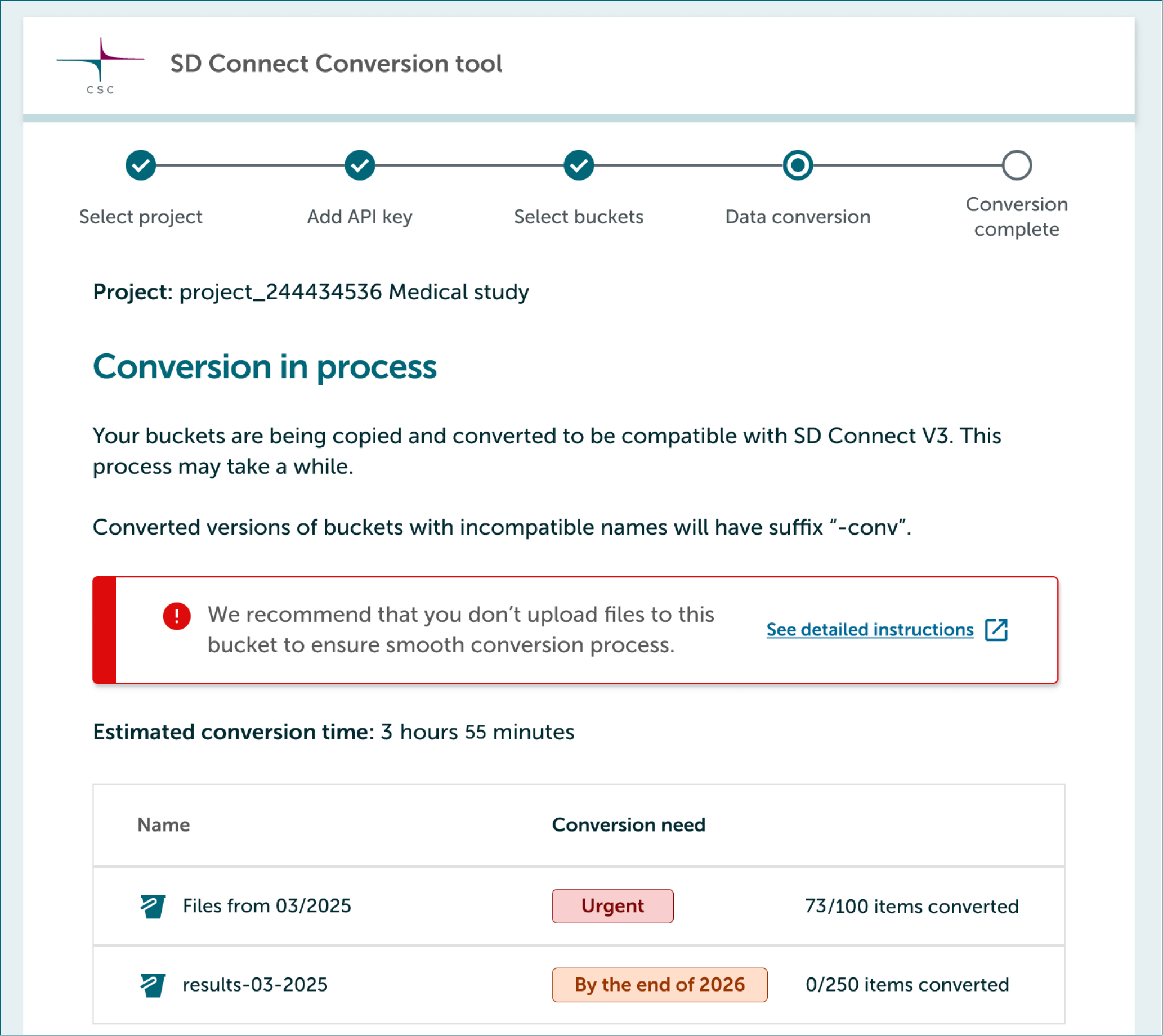
- After selecting buckets you can start process by clicking Start conversion.
- We recommend that you don't upload files to buckets being converted during conversion.
- You can follow the progress from Conversion tool.
2.6 If conversion is interrupted
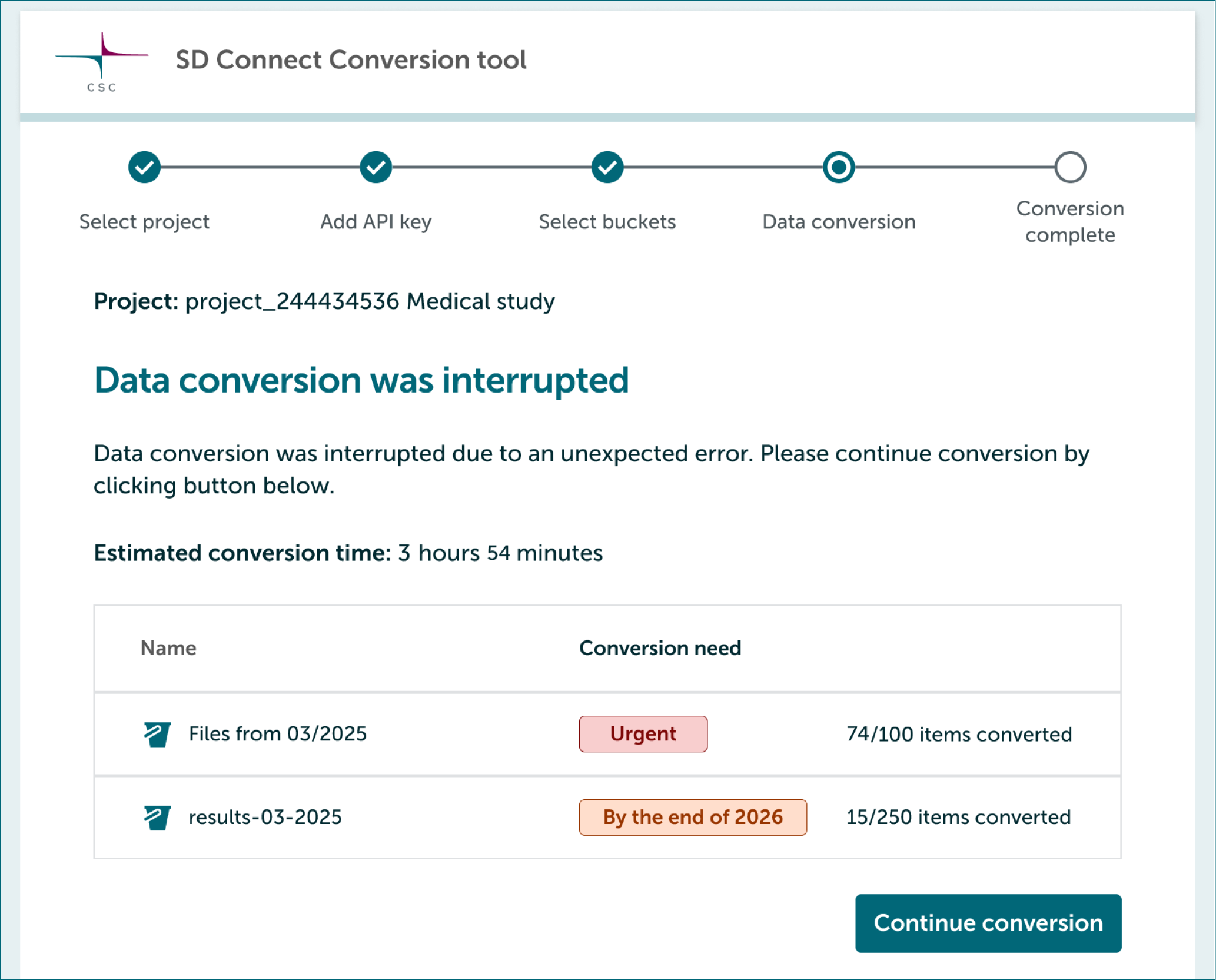
Conversion pauses if your laptop runs out of power or loses internet connection. You can continue conversion easily.
- Launch SD Connect Conversion tool and login with your CSC credentials.
- Conversion tool will show you that conversion has been interrupted.
- If a new API key is needed, it will be shown in the tool. Follow these instructions.
- Continue by clicking Continue conversion.
2.7 Finish conversion
In this final step if the converted bucket has -conv suffix the original incompatible bucket will be permanently deleted freeing up storage space. In other buckets only some technical segments will be removed, the original bucket and data will remain intact.
-
Ensure that the bucket size and item count match before and after the conversion from data table.
-
If the conversion was successful finalize it by clicking Delete.
-
If you have questions, please contact servicedesk@csc.fi.
-
Finally, re-login to SD Connect. Labels should have been removed. In your buckets you should now see bucket size, item size and also the sharing information.
2.8 Any issues
If you have problems during conversion, please follow these steps:
-
On your laptop open Documents > SD-Connect-S3-Migrate folder. There you will find a file called migration-logfile.log.
-
Please share this file with us via servciedesk@csc.fi (subject SD Connect) and describe shortly the problem you encountered.