Table of contents of user guide
Login to SD Connect
Prerequisites
Step by step
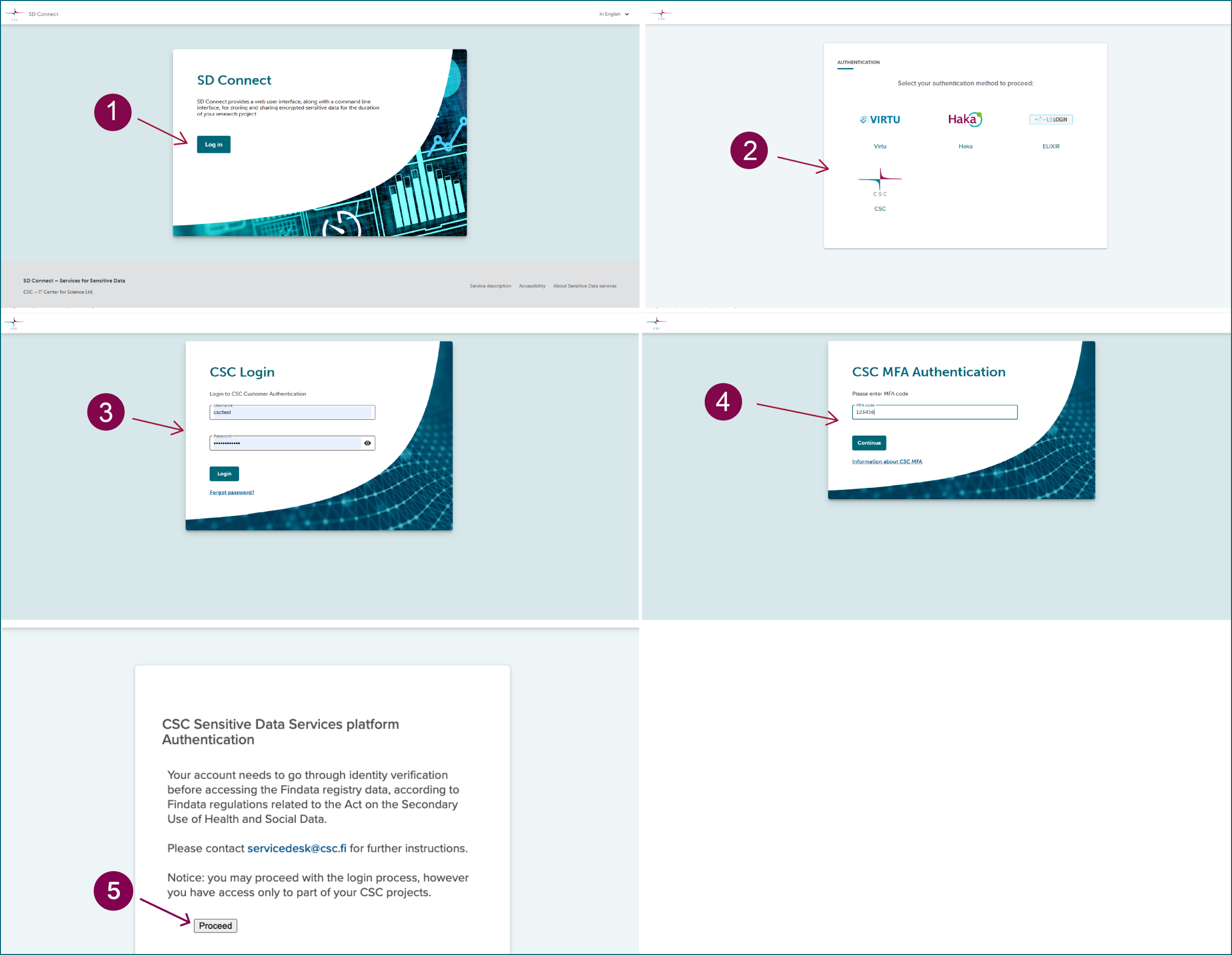
- Navigate to SD Connect. We recommend using Google Chrome for the best experience.
- Choose your login method. Select CSC Login, Haka, Virtu or Life Science login then click Login.
- Enter your details. Type in your username and password, then click Login.
- Verify your identity. As a second verification step, enter the temporary code from your mobile authenticator app and click Continue. If prompted, please accept cookies to proceed.
- You should now have access to SD Connect. If you see an additional message about identity verification, click Proceed to continue.
- Troubleshooting tip. If you run into any issues, try clearing your browser history and cookies before logging in again. Note that Firefox private mode is not supported.