Advanced level
This tutorial uses OpenShift CLI tool oc and Helm You must understand that OpenShift Routes only exposes HTTP/HTTPS port to the internet
Accessing databases on Rahti from CSC supercomputers
New Rahti LoadBalancer available
It is now possible to enable LoadBalancer in Rahti.
Unlike Routes, the LoadBalancer service allows you to expose services to the Internet without being limited to HTTP/HTTPS.
Have a look at the documentation linked above to learn more.
The following documentation is still available if you prefer to use Routes and Websocat.
Many HPC workflows require a database. Running these on the login node poses several issues and running on Pouta brings administration overhead. Rahti is a good candidate, but one obstacle is that Rahti does not support non-HTTP traffic from external sources.
A workaround for this problem is to establish a TCP tunnel over an HTTP-compatible WebSocket connection. This can be achieved using a command-line client for connecting to and serving WebSockets called WebSocat. Here, a WebSocat instance running on Puhti/Mahti translates a database request coming from a workflow to an HTTP-compatible WebSocket protocol. Once the traffic enters Rahti we use another WebSocat instance running inside Rahti to translate back the WebSocket connection to a TCP connection over the original port the database is configured to receive traffic. A drawing of the process is shown below.
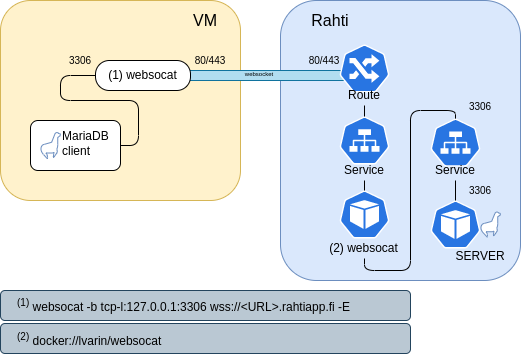
This tutorial outlines the steps to achieve this using MariaDB as an example database.
Info
This solution is suitable for computationally light use cases. Reasonable scaling can be expected for up to ~100 processes simultaneously accessing a database on Rahti. Exceeding this limit is not advised and may result in performance degradation.
Step 1: Setting up MariaDB and WebSocat on Rahti
We will use the Bitnami MariaDB Helm chart. This Helm Chart is not meant for production use, but it is sufficient for demonstration purposes.
Simply run this command:
- Add WebSocat by launching this OpenShift template. You can check the target port with
oc describe services <service name>. The default parameters for the service name and target port aremariadband 3306, respectively
oc new-app --file=https://raw.githubusercontent.com/CSCfi/websocat-template/refs/heads/main/websocat-template.yaml \
--param=DATABASE_SERVICE=<service name>.<project name>.svc \
--param=DATABASE_PORT=<port>
- Remember the route hostname of the form
websocat-<project name>.2.rahtiapp.fi. You can check this later withoc get route websocat
If you visit the Route URL with you browser, you should see this message:
Step 2: Running WebSocat on CSC supercomputers
MariaDB and WebSocat have now been set up on Rahti and you should have the following details: MariaDB username, password, database name and the WebSocat route hostname. These are needed when connecting to the database. However, first we need to run the websocat binary on Puhti/Mahti to open the required TCP tunnel.
- Download
websocatfrom GitHub and add it to yourPATH. For example:
wget https://github.com/vi/websocat/releases/download/v1.8.0/websocat_amd64-linux-static \
  -O websocat
chmod +x websocat
export PATH=$PATH:$PWD
- We do not want to run WebSocat on the login node, so open an interactive session with
sinteractive -iand launchwebsocat. By passing 0 as the target port, WebSocat gets handed an available port which we can extract usinglsof(the below commands are conveniently put into a script). Recall that the<project name>placeholder in the route hostname provided towebsocatrefers to the name of your Rahti project
websocat -b tcp-l:127.0.0.1:0 wss://websocat-<project name>.2.rahtiapp.fi -E &
ws_pid=$!  # $! contains the process ID of the most recently executed background command
mkdir -p /tmp/$USER
lsof -i -p $ws_pid 2>/dev/null | grep TCP | grep -oE "localhost:[0-9]*" | \
  cut -d ":" -f2 > /tmp/$USER/${SLURM_JOB_ID}_rahtidb_port
echo "Got target port $(cat /tmp/$USER/${SLURM_JOB_ID}_rahtidb_port)"
Info
If you want to access your database within a batch job, run websocat within your batch script. You can utilize the same obtained target port if you're submitting your job from an interactive session in which websocat is already running, websocat -b tcp-l:127.0.0.1:<port> wss://websocat-<project name>.2.rahtiapp.fi -E &. Otherwise, pass 0 as the target port and check which one it gets handed using lsof.
- Now
websocatis running in the interactive session/batch job and you may connect to your MariaDB database on Rahti using the obtained target port. You can verify the connection with e.g. Python. Note that the username and password below refer to the created database service, not your CSC credentials
Info
For this example to work, you need to install the mariadb python module. At the time of writing this the command to use is:
pip3 install mariadb=1.0.11
This is due to the fact that the current last version of the module is broken for the platforms we tested this with. See the upstream documentation for more information: https://mariadb-corporation.github.io/mariadb-connector-python/install.html
# Module Imports
import mariadb
import sys

# Connect to MariaDB Platform
try:
    conn = mariadb.connect(
        user="<username>",
        password="<password>",
        host="127.0.0.1",
        port=<port>,
        database="<database name>"

    )
except mariadb.Error as e:
    print(f"Error connecting to MariaDB Platform: {e}")
    sys.exit(1)

# Get Cursor
cur = conn.cursor()
Note: The websocat client will only listen on IPv4. On some systems it is then necessary to use 127.0.0.1 as host, otherwise IPv6 will be used and it will not connect.